
Overview
DTEN Smart Framing automatically focuses and captures each participant in a separate frame in the same stream. This experience ensures everyone is clearly visible in a meeting environment.
Supporting Product
D7X Windows
Designed Use Case
During meetings in Zoom Rooms or BYOD (Smart Connect Mode), each individual can be focused on and displayed separately, enabling better communication for everyone.
Setup Instructions
Prerequisites
DTEN D7X Windows minimum version: 3.4.5
Zoom Room App minimum version: 5.13
Step-by-step instructions
Activating Smart Framing in ZR:
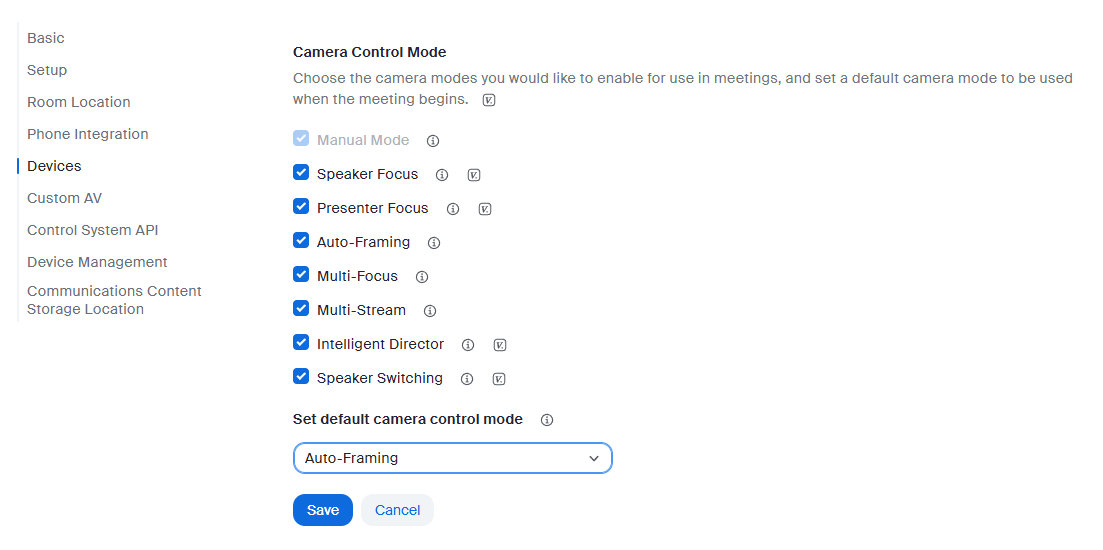
1. Select "Auto Framing" mode in ZDM (Zoom Device Management), which is in Room Settings -Rooms profile-Devices-Default Camera Control Mode
2. On the device, press the "Menu" button on the back of D7X .
3. Enter the Dashboard.
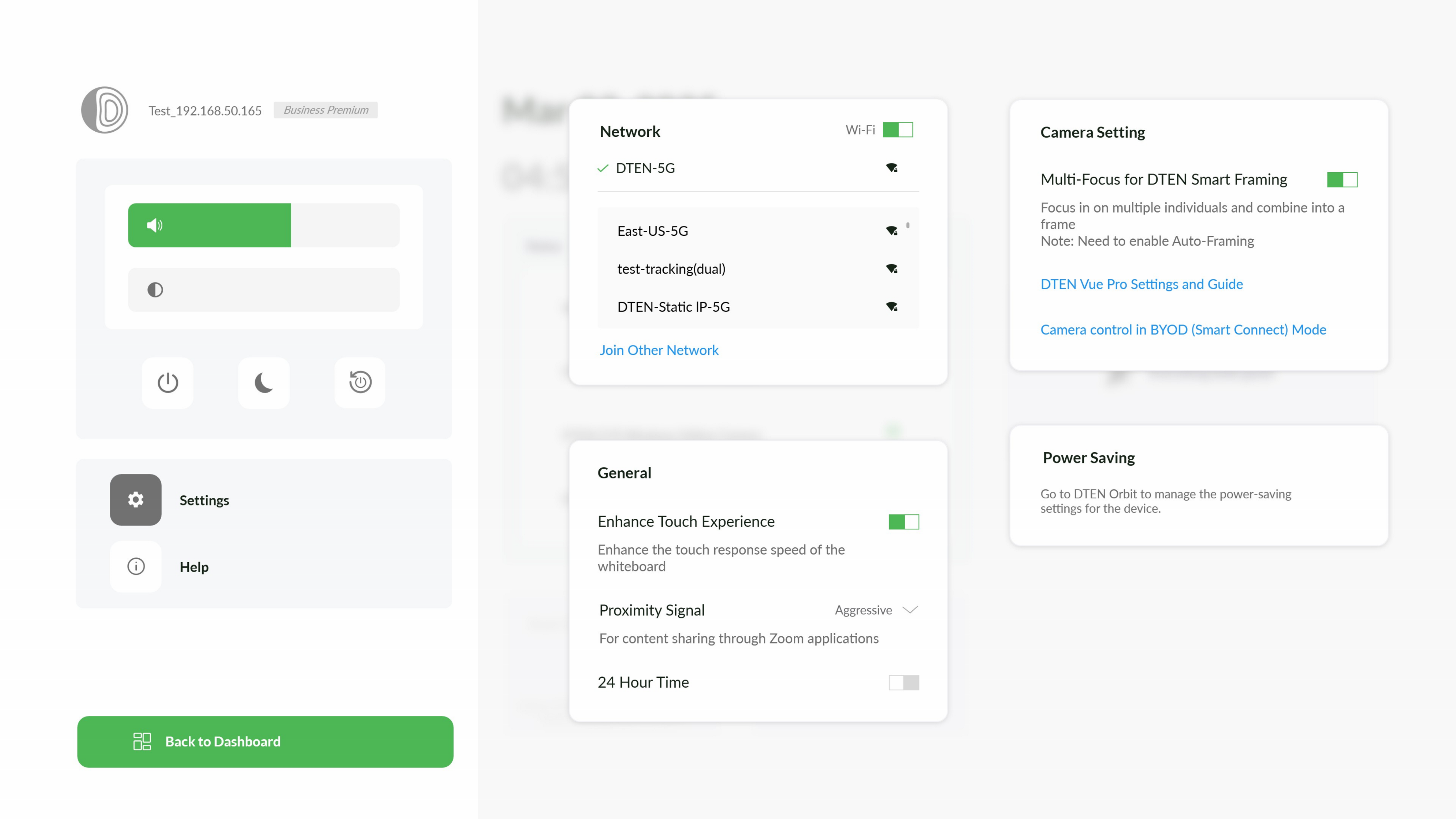
4. Click on "Settings."
5. Toggle on the Multi-Focus for DTEN Smart Framing switch.
6. Launch the Zoom application, create or join a meeting, and you will experience the Smart Framing effect.
Activating Smart Framing in BYOD(Smart Connect Mode)
1. On the device, press the "Menu" button on the back to access the hardware options.
2. Enter the Dashboard.
3. Click on "Settings."
4. Toggle on the Multi-Focus for DTEN Smart Framing switch.
5. At this point, enter BYOD mode (Smart Connect Mode) through any suitable method.
6. Use your preferred video conferencing software on your laptop to start a meeting, and enjoy the Smart Framing effect.
If you have additional questions or need to contact DTEN Support, please refer to this DTEN Knowledge Base article for more details: HERE.
Was this article helpful?
That’s Great!
Thank you for your feedback
Sorry! We couldn't be helpful
Thank you for your feedback
Feedback sent
We appreciate your effort and will try to fix the article