

Overview
Camera Control in Smart Connect mode provides advanced features such as PTZ control, camera presets, and auto-framing, thereby offering greater flexibility and customization for the D7X Camera to improve your meeting experience when you bring your own device and use the D7X Windows devices as peripherals in a meeting.
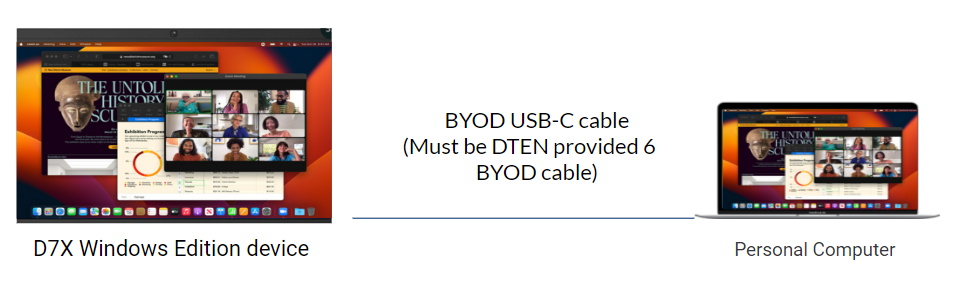
Supporting Product
- DTEN D7X Windows Edition with v.3.3.5 or above
Designed Use Case
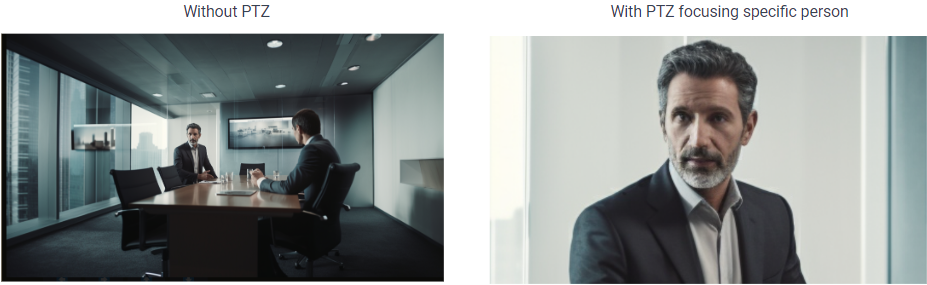
Optimizing Meeing Experience with Manual PTZ Control
Presenters of hybrid meetings want to set a specific PTZ angle for the camera, so that they can focus on key areas and subjects, such as the presenter or visual aids, to enhance participant engagement and improve the overall quality of the meeting
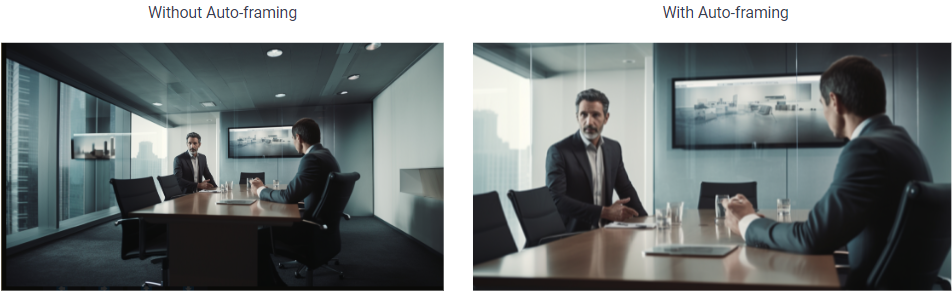
Enhancing Participants Visibility with Auto-Framing
Local meeting attendees using D7X Windows devices in Smart Connect mode want an auto-framing feature to ensure clear visibility for all meeting attendees, making the conference more inclusive and engaging.
Setup Instruction
Prerequisites
- Supported DTEN devices with minimum Zoom Room version requirements.
Step-by-step instructions
The Zoom Room camera settings in Manual mode will automatically apply in Smart Connect mode. If you would like to make modifications, please follow the instructions below.
Note: The modifications in Smart Connect mode will affect your Zoom Room camera settings in Manual mode.
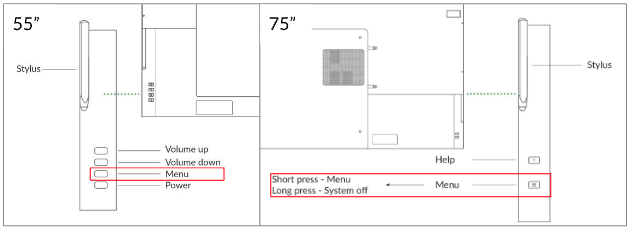
- Press the Menu Button on the back of the DTEN device to open the DTEN Dashboard.
- Tap Settings, then select Camera Control for Smart Connect Mode under Camera Settings section.
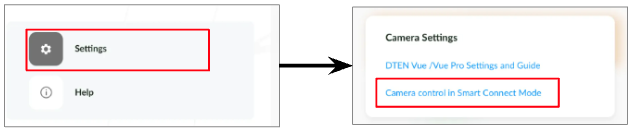
- Adjust the camera positions as needed.
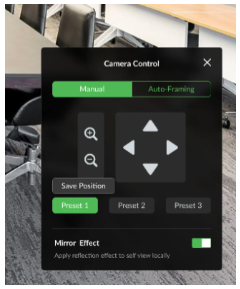
Known Issue
There are no known issues at this time.
If you have additional questions or need to contact DTEN Support, please refer to this DTEN Knowledge Base article for more details: HERE.
Was this article helpful?
That’s Great!
Thank you for your feedback
Sorry! We couldn't be helpful
Thank you for your feedback
Feedback sent
We appreciate your effort and will try to fix the article