

DTEN Setting Proximity Signal
Overview
There are situations where the proximity sound may be interrupting the meeting experience due to interfering with the microphone frequency. To mitigate this issue, the user can now adjust the proximity signal strength through the DTEN device settings.
Supporting Product
D7X 55 & 75 Windows
Designed Use Case
If a buzzing noise occurs in a meeting, users can adjust the proximity signal. This will reduce the noise and improve users’ meeting experience.
*If users are not experiencing any noise issues, there is no need to change this setting.
Setup Instructions
Prerequisites
- DTEN minimum version: 3.5.0
- Zoom Room minimum version: 5.13
- Sign in to your Zoom Rooms account
Step-by-step instructions
- While on the Zoom homepage, press the "Menu" button on the back to access the hardware options.
- Enter the Dashboard.
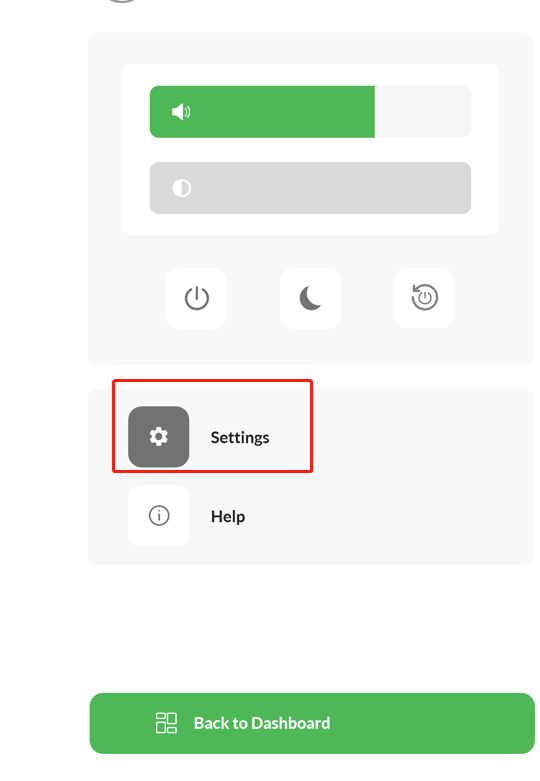
- Click on "Settings."
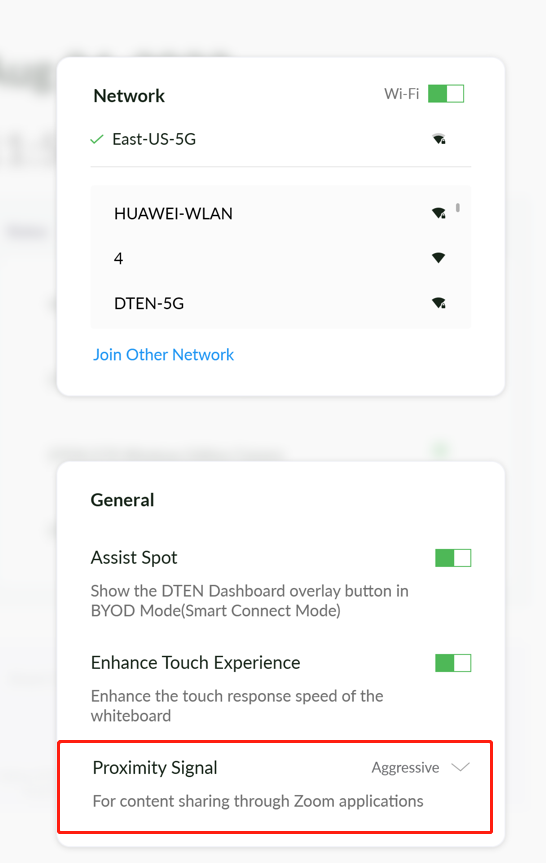
- Click on "Proximity Signal"
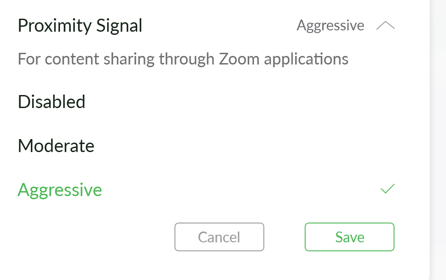
- Select either Moderate or Disabled (The default is set to Aggressive, If users are experiencing any noise issues, they can try Moderate or Disabled to resolve the noise issue.)
If you have additional questions or need to contact DTEN Support, please refer to this DTEN Knowledge Base article for more details: HERE.
Was this article helpful?
That’s Great!
Thank you for your feedback
Sorry! We couldn't be helpful
Thank you for your feedback
Feedback sent
We appreciate your effort and will try to fix the article