

Overview
DTEN solution enables seamless pairing and remote control between Mate and Bar, enhancing the meeting experience for Zoom and Teams. Users can easily integrate and control the Bar through Mate, improving efficiency and productivity. The solution optimizes audio, video, and content sharing, providing a seamless collaboration environment. With our solution, users can maximize the potential of both devices, resulting in a productive and seamless meeting experience.
Supporting Product
- DTEN Bar
- DTEN Mate
Prerequisite
- DTEN Bar v1.2.6 and above
- DTEN Mate v2.2.6 and above
Use Case
Managing and controlling the DTEN Bar remotely during Zoom and Teams meetings can be challenging due to limited functionality, causing inconvenience and reducing efficiency. Our solution simplifies this process by enabling seamless pairing and control between the Mate and Bar. This integration provides a unified interface for device management, ensuring a smooth and hassle-free meeting experience. By enhancing remote control capabilities, our solution improves collaboration and increases productivity, allowing users to focus more on their meetings and less on technical issues.
Setup Instruction
Step-by-step instructions
A brand new DTEN Bar + An existing DTEN Mate
Pairing a Mate (previously paired with a D7X) with a DTEN Bar, follow these steps:
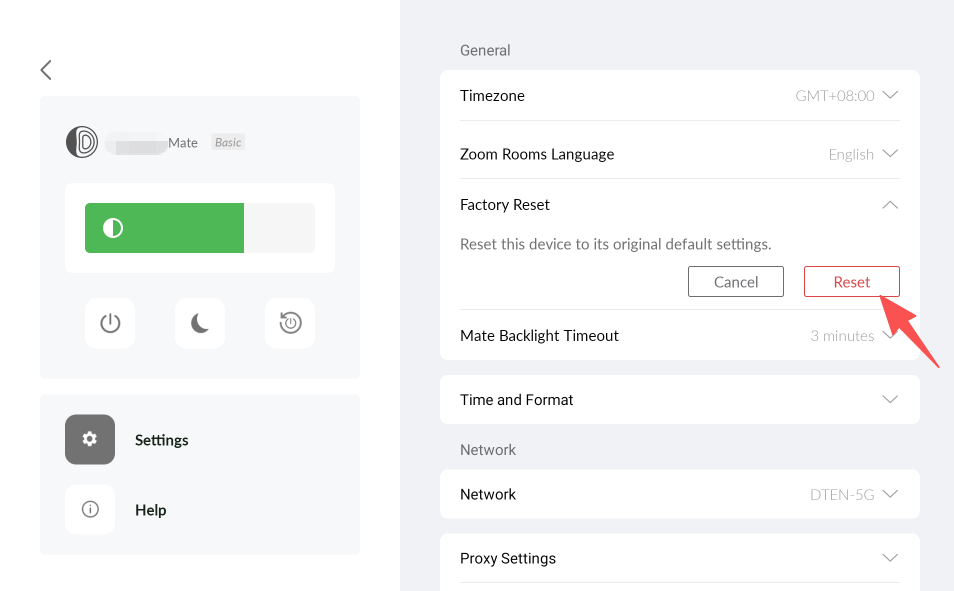
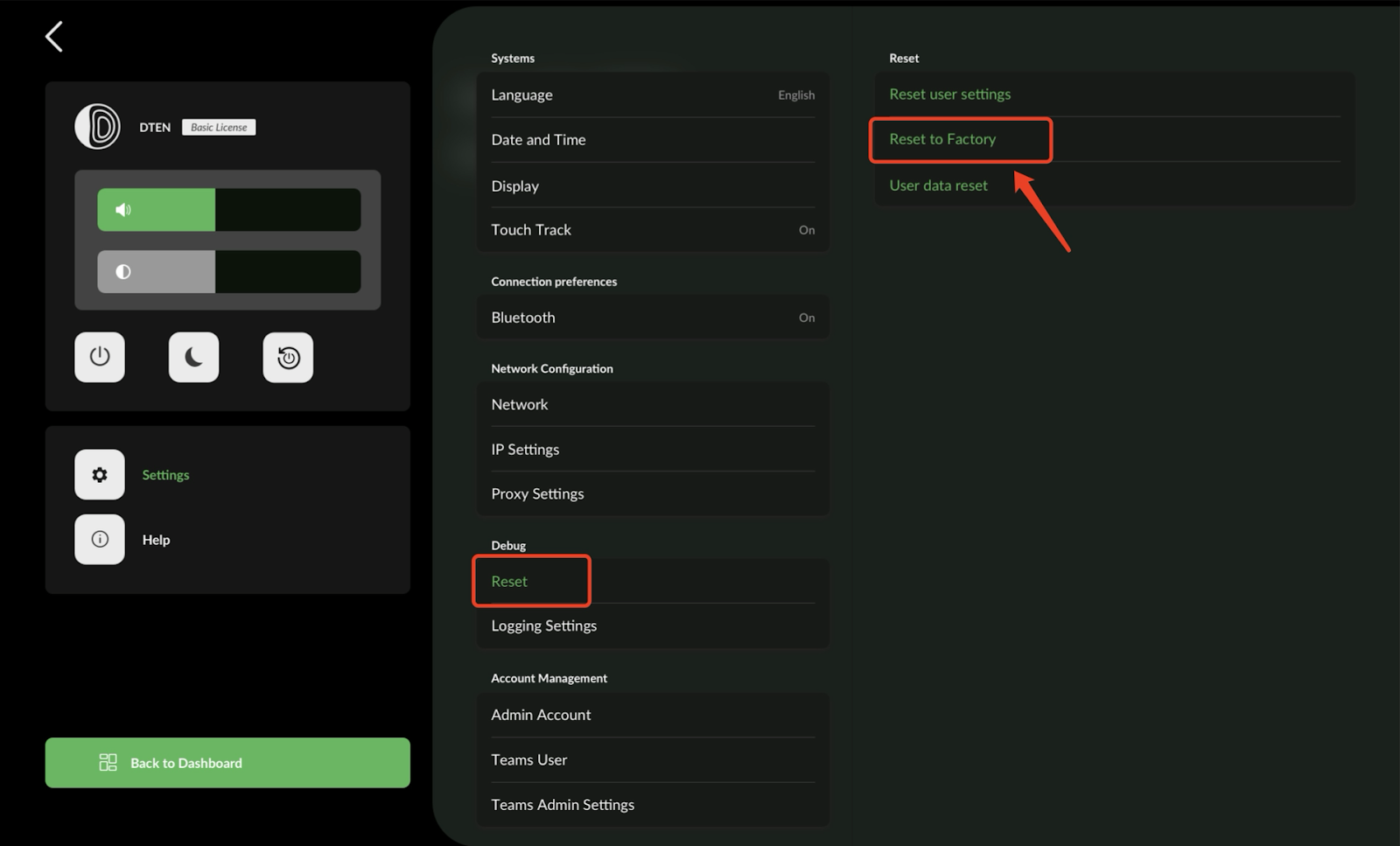
- Factory reset both the Mate and the D7X to remove the existing pairing.
DTEN Mate
Factory Reset On Zoom Rooms
Factory Reset On Teams
- If the Bar has completed the Out of Box Experience (OOBE):
- Factory reset the Bar and go through the OOBE again.
- On the first OOBE screen, scan the QR code or enter the pairing code on the Mate to establish the connection.
- If the Bar is in Zoom mode, the Mate will automatically install and launch the ZRC application.
- If the Bar is in Teams mode, the Mate will automatically install and launch the Touch Console application.
- If the Bar has not completed the OOBE:
- On the first OOBE screen, scan the QR code or enter the pairing code on the Mate to establish the connection.
- If the Bar is in Zoom mode, the Mate will automatically install and launch the ZRC application. If the Bar is in Teams mode, the Mate will automatically install and launch the Touch Console application.
A brand new DTEN Bar + a brand new DTEN Mate
If you have purchased both the Bar and Mate devices, follow these steps to pair them simultaneously. See more details here: DTEN Bar and Mate First-time User Experience Out-of-Box Experience
- Start both the Bar and Mate devices.
- On the first OOBE screen, scan the QR code or enter the pairing code on the Mate to establish the connection.
- If the Bar is in Zoom mode, the Mate will automatically install and launch the ZRC application. If the Bar is in Teams mode, the Mate will automatically install and launch the Touch Console application.
If you have additional questions or need to contact DTEN Support, please refer to this DTEN Knowledge Base article for more details: HERE.
Was this article helpful?
That’s Great!
Thank you for your feedback
Sorry! We couldn't be helpful
Thank you for your feedback
Feedback sent
We appreciate your effort and will try to fix the article