
Overview
This document outlines the procedures for factory resetting the DTEN Mate device. You may select the method based on your specific requirements.
How to Factory Reset DTEN Mate?
Method 1: The DTEN Mate Menu (Soft Reset)
Factory Reset On Zoom Rooms:
- Click on Settings on the device's Home screen.
- Select System Settings (Enter Zoom Room pin if enabled).
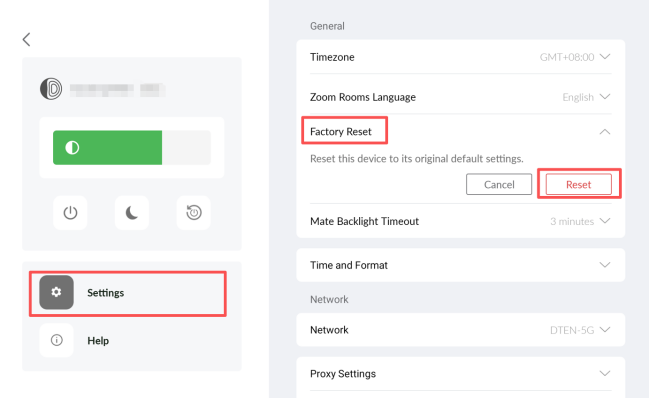
- Go to the Dashboard and click on Settings.
- Under the General section, find and expand the Factory Reset drop-down.
- Select Reset to initiate the factory reset process.
Factory Reset On Teams:
1. On Teams Home Page →Click on More → Select Settings → Device Settings → Dashboard.
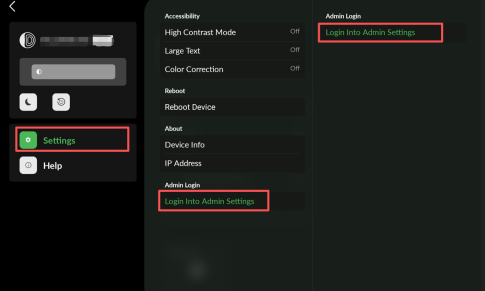
2. In the Dashboard, select Settings→Login into Admin Settings→Select “Login into Admin Settings” in the top right corner.
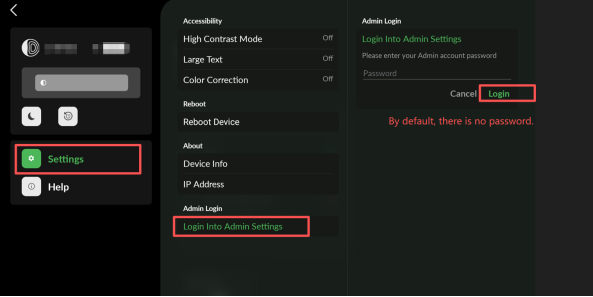
3. Select Login. (By default, no password is required.)
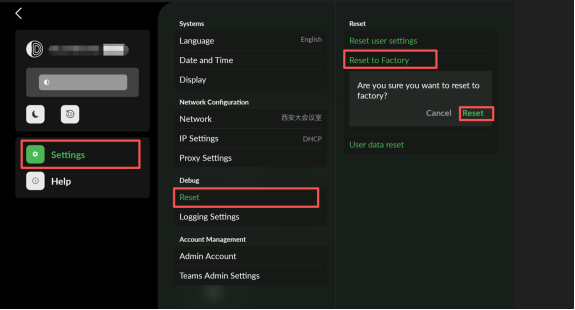
4. Select Reset→Reset to factory→Reset.
Method 2:Mate Pinhole Reset (Hard Reset)
Required Tool: Prepare a SIM ejector tool, paperclip, or a pin.( )
)
Steps:
1. Remove the Mate from the Dock.
2. Plug in a Type-C cable before you start.
While plugged into a Type-C cable, Mate will automatically power on. Power the Mate off again before proceeding with the pinhole reset.
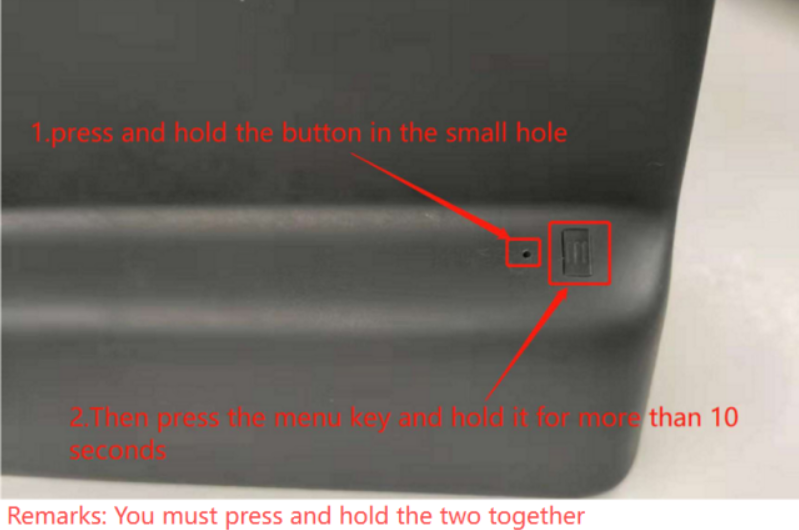
3. Locate the Reset Pinhole.
Find the small Reset pinhole on the back of the device.
4. Perform the Pinhole Reset
- Insert and Press: Insert your SIM ejector tool or paperclip into the reset pinhole and press and hold the internal reset button. Do not release it yet.
- Press and Hold (Key Combination): While continuing to hold the reset button, press and hold the physical Menu button on the back of the device at the same time.
- Wait for Signal: Keep both buttons held down until the DTEN logo appears on the screen.
- Release Buttons: Once the DTEN logo is displayed, you can release both buttons simultaneously.
5. Wait for Reboot
The device will then automatically complete the factory reset and reboot. This process may take a few minutes. Please be patient and do not perform any other operations during this time.
Getting Help
If you have additional questions, please contact DTEN Support at 1 (866) 936-3836 or click here.
Was this article helpful?
That’s Great!
Thank you for your feedback
Sorry! We couldn't be helpful
Thank you for your feedback
Feedback sent
We appreciate your effort and will try to fix the article