
OVERVIEW
The answers to our FAQ below may help with the new features of DTEN firmware v1.5.0 release.
DTEN ePTZ Function
The new firmware v1.5.0 for DTEN D7 55” Series 1 has a new ePTZ-enabled Zoom Rooms function. (Note: The functionality of the ePTZ will vary based on hardware.) If you do not see ePTZ-enabled Zoom Rooms, please contact help.dten.com.
How do I access this feature?
- When in the meeting, click the Vertical Ellipsis (three dots) at the bottom right corner
- Click Camera Control on the pop-up menu to open up ePTZ-enabled Zoom Rooms (see below)
- This will pull up the Camera Control, Intelligent Zoom, and Preset options - each is explained in more detail below.
This feature has the following hardware/software version dependencies:
| Dependencies | Requirement |
| DTEN Software Dependencies | DTEN 1.5.0 |
| DTEN Hardware Dependencies | NO |
| Zoom Room Dependencies | NO |
Zoom Rooms Presets
Note: Setting Presets may require the Zoom Room Passcode:
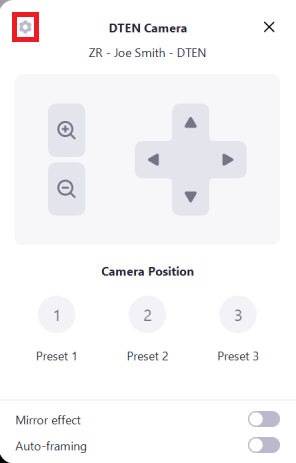
1. To set the system presets, press the Gear in the upper left of the camera controls. This may ask for the Zoom Room passcode set on the device in the Zoom admin portal.
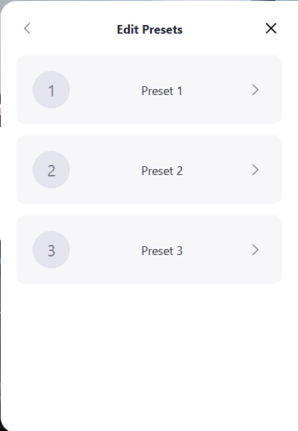
2. Next, select the preset you would like to adjust.
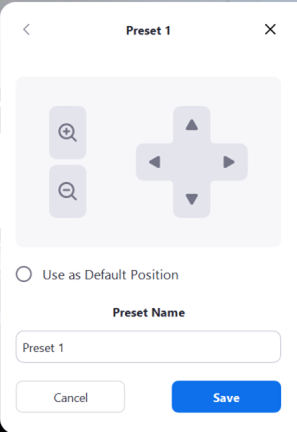
3. From there you can use the camera controls to change and set the view of the camera on the DTEN. Select the default position view when the system starts up. You will also have the ability to edit the name of the preset (i.e. Back of Table, Whiteboard, etc).
This feature has the following hardware/ software version dependencies:
| Dependencies | Requirement |
| DTEN Software Dependencies | DTEN 1.5.0 |
| DTEN Hardware Dependencies | NO |
| Zoom Room Dependencies | NO |
Wider View
DTEN v1.5.0 increases the camera view to 120-degree. There is no configuration required to enable a wider view.
This feature has the following hardware/ software version dependencies:
| Dependencies | Requirement |
| DTEN Software Dependencies | DTEN 1.5.0 |
| DTEN Hardware Dependencies | YES. Only the AV bar with yellow label will support this 120-degree wider view. AV bars with white labels do not support this wide view feature. Please contact DTEN Support if you need further assistance. |
| Zoom Room Dependencies | NO |
Intelligent Zoom
Prerequisite: log into Zoom Web Portal > Select the room > Edit > Intelligent Camera > and select “enable auto-framing when the meeting starts” in Intelligent camera.
Note: It might take 24 hours for the setting to take effect. If you do not see this in your D7 after the firmware update, please contact DTEN Support and be ready to provide a picture, SN number, and DTEN ID.
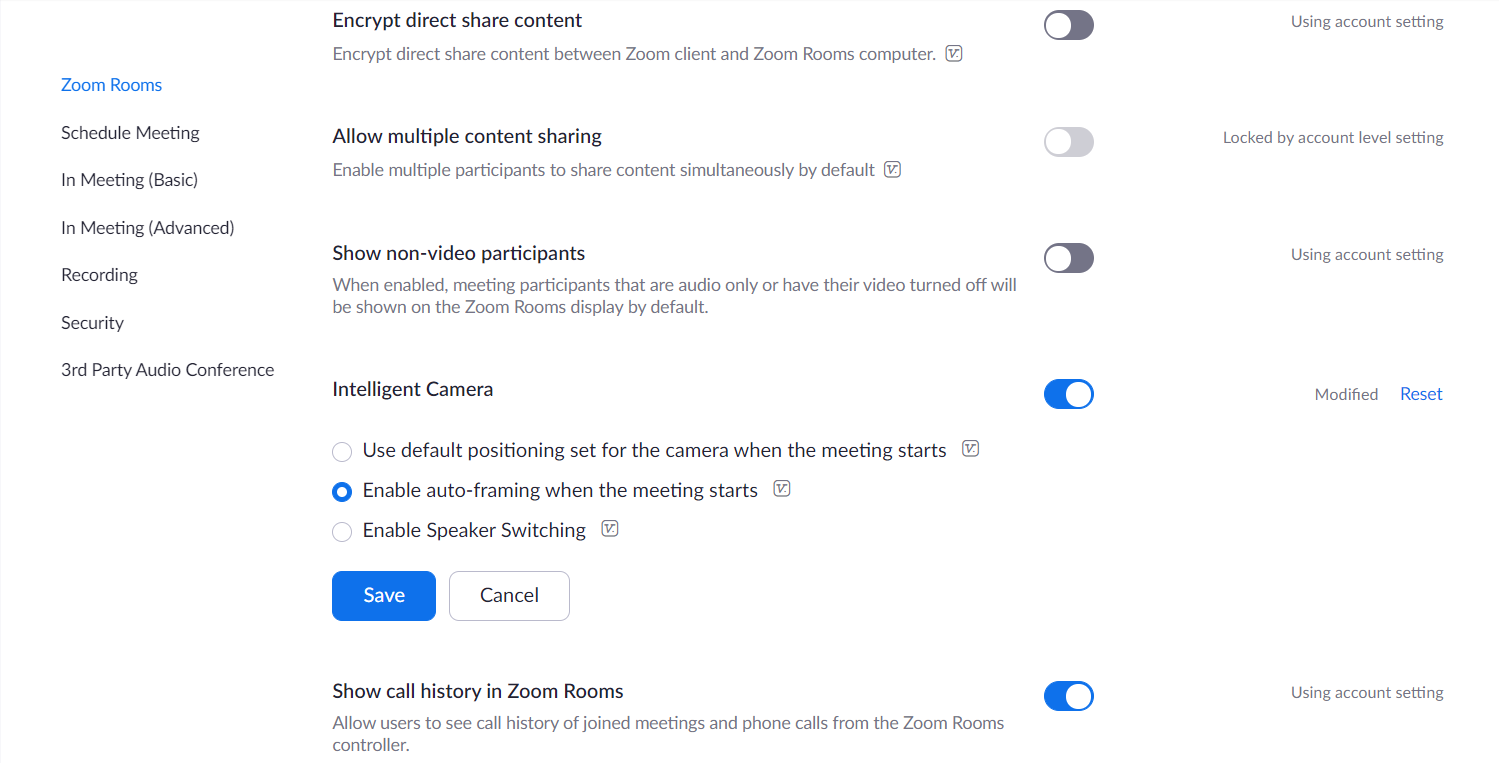
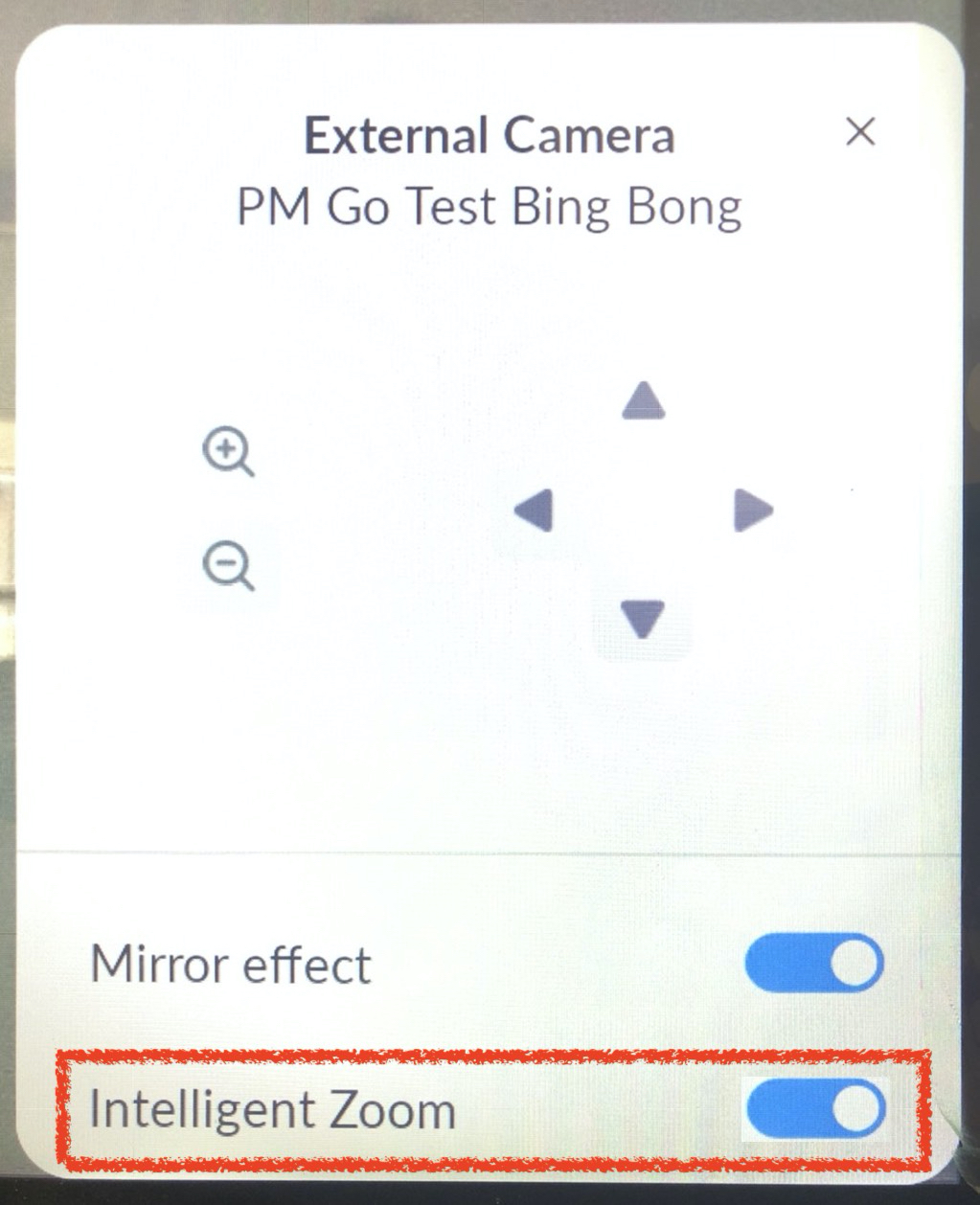
Known Issue: Currently, toggling off the Intelligent Zoom setting in the Zoom Rooms menu on the D7 system does not switch this feature off (see above screenshot highlighted by red square). Please use the ZDM Zoom Rooms settings to enable or disable Intelligent Zoom for that specific D7 system. A fix for this will be available in the next firmware update.
This feature has the following hardware/ software version dependencies:
| Dependencies | Requirement |
| DTEN Software Dependencies | DTEN 1.5.0 |
| DTEN Hardware Dependencies | NO |
| Zoom Room Dependencies | NO |
If you have additional questions or need to contact DTEN Support, please refer to this DTEN Knowledge Base article for more details: HERE.
Was this article helpful?
That’s Great!
Thank you for your feedback
Sorry! We couldn't be helpful
Thank you for your feedback
Feedback sent
We appreciate your effort and will try to fix the article