
Use the Windows Recovery tool in Windows Setting to reset Windows, follow the steps below:
Select the Windows start button, then select Settings > Update & Security > Recovery.
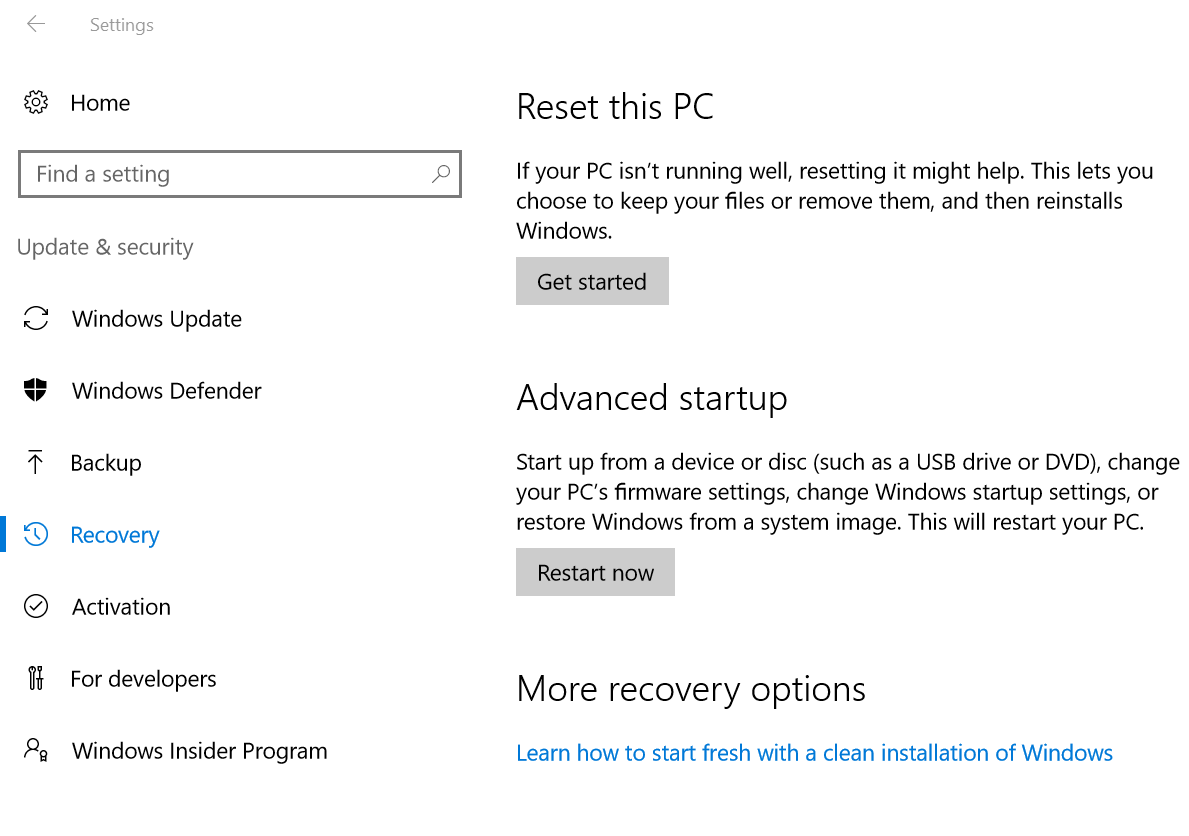 Under Reset, this PC, select Get started
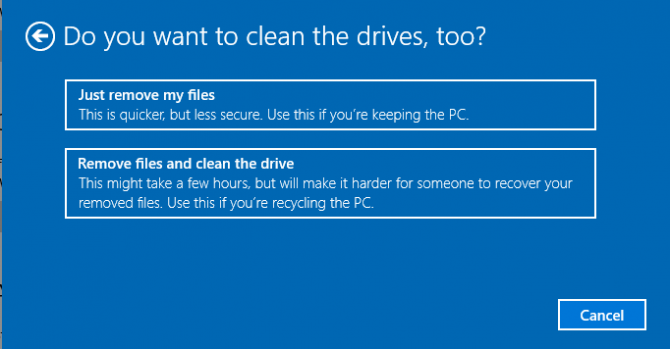
then choose one of the options in the table below.
|
Option |
What it does |
|
Keep my files |
|
|
Remove everything |
If you're planning to donate, recycle, or sell your PC, use this option and choose to fully clean the drive. This might take an hour or two, but it makes it harder for other people to recover files you've removed. |
Source ( https://support.microsoft.com/en-us/help/12415/windows-10-recovery-options)
If you have additional questions or need to contact DTEN Support, please refer to this DTEN Knowledge Base article for more details: HERE.
Was this article helpful?
That’s Great!
Thank you for your feedback
Sorry! We couldn't be helpful
Thank you for your feedback
Feedback sent
We appreciate your effort and will try to fix the article