
This Best Practice Guide is applicable for the following use case:
- Admin to help end-users setting up Zoom For Home or Personal Zoom Room with Orbit
Review the sections below to activate and to install DTEN ME:
Before the unboxing
1.1 Provisioning Zoom for Home devices
Please create a personal room following the instructions here. This will allow updating the Zoom for Home device on the Zoom portal: https://support.zoom.us/hc/en-us/articles/360048921611-Provisioning-Zoom-for-Home-devices
1.2 Sign up for an orbit account and generate a 6-digits activation code
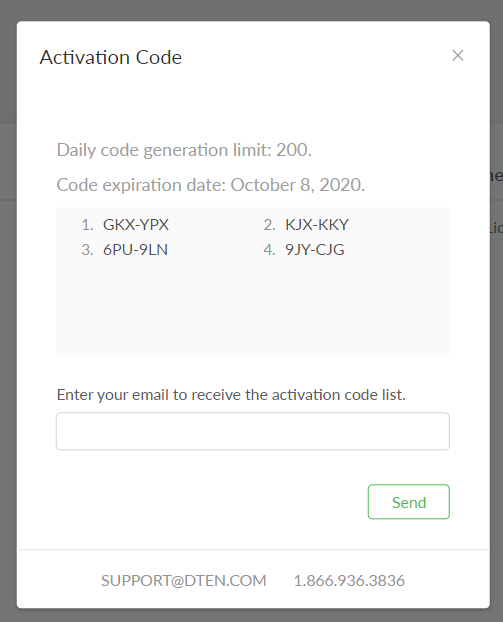
You would have to create an account in Orbit and to generate a 6-digits activation code that will be used in the setup later.
*Note - click here to learn more about What is DTEN Orbit.
Please follow the steps below:
- Go to orbit.dten.com
- Create a new account and then log in to the orbit portal
- In the left-side navigation menu, click Device Management - Device List - Add devices
- Next, do the following:
- Enter the number of devices that you plan to activate or deploy
- Choose “Code Expires after 7 days”
- Click “Generate Codes”
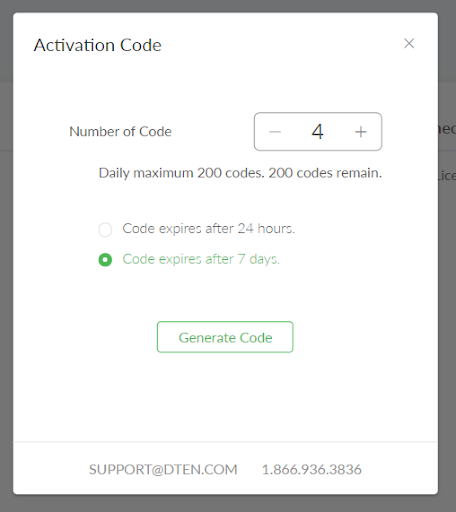
- You will see the codes in the pop-up window. We recommend sending it to you for record-keeping purposes.
1.3 Orbit User Management for admins
There are few key things to know when managing your orbit corporate account:
There are three roles in orbit:
- Owner: Account owner has full privileges to access and manage a DTEN account
- Admin: Admins have a wide range of privileges to access and manage a DTEN account
- User: Members have access to and manage their personal devices but no account management privileges
During the Installation:
1. Activate Warranty
-
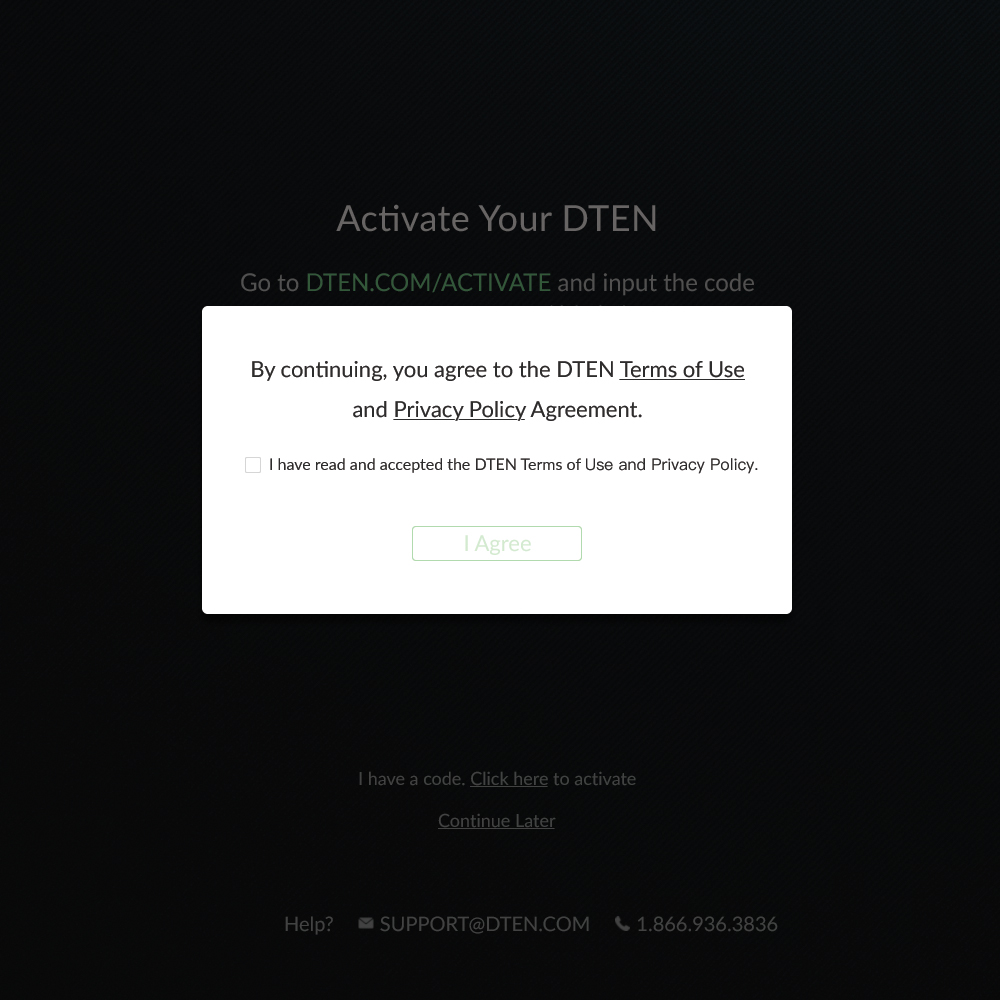
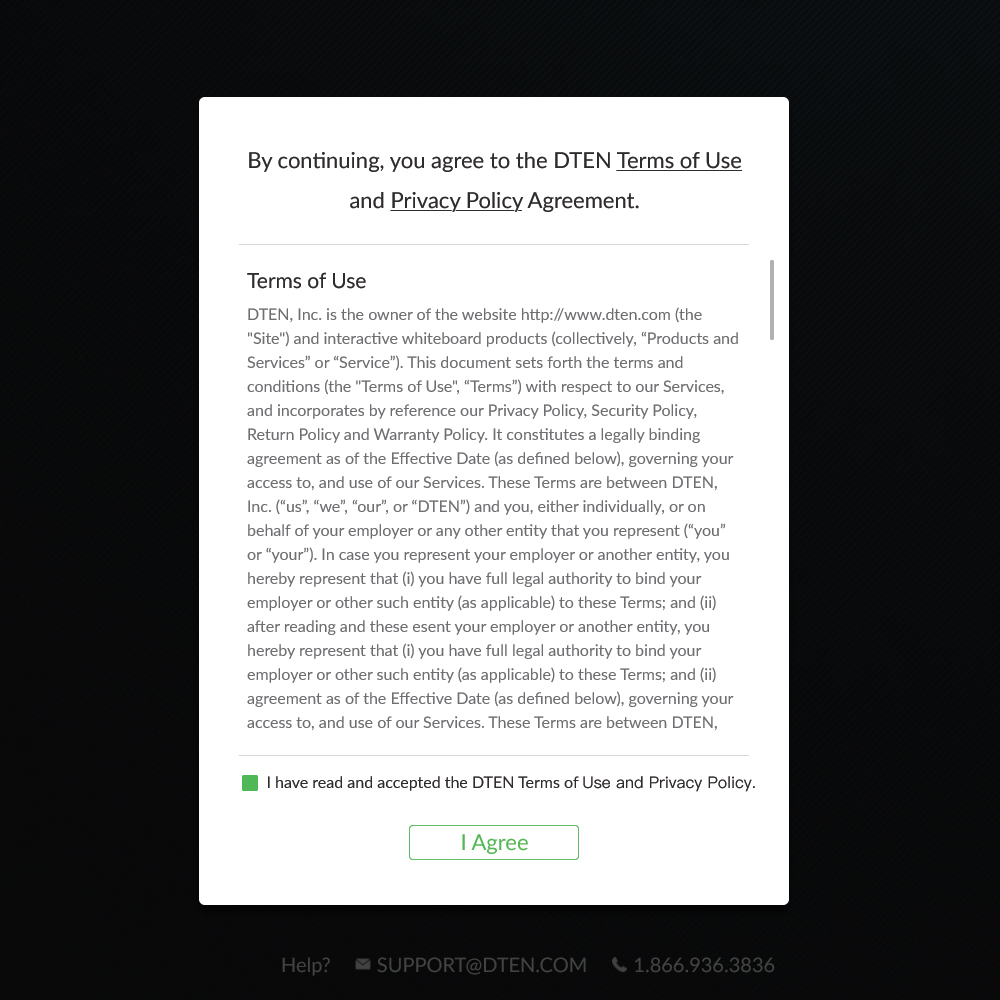
Click the box next to the agreement clause.
-
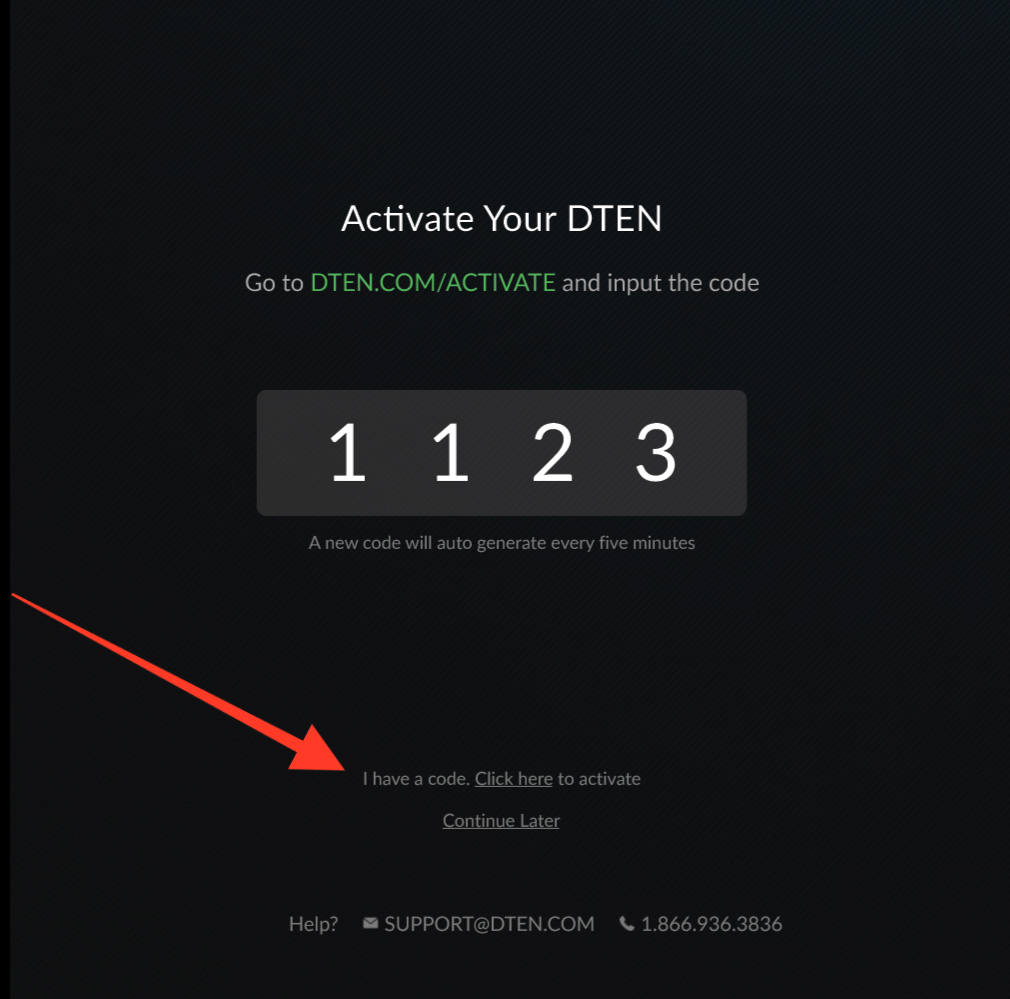
At the bottom of the page, click “I have a code”
-
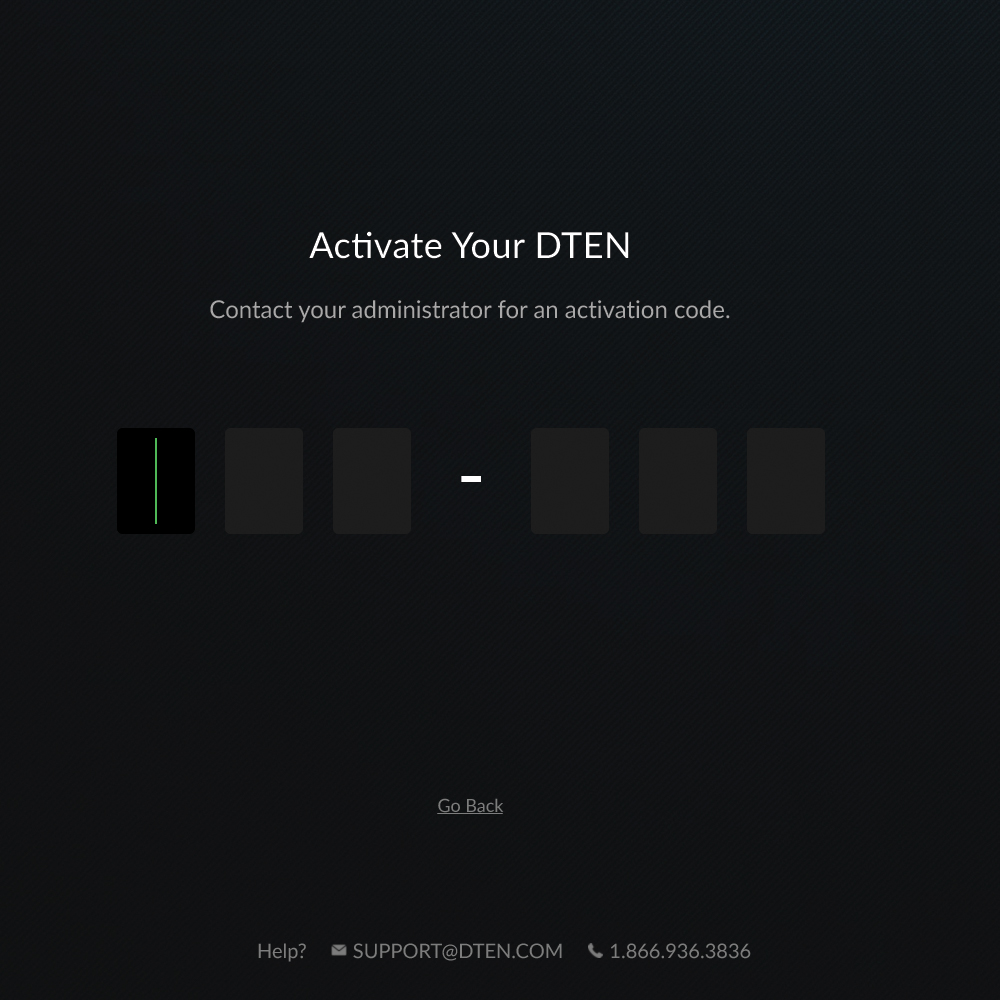
Enter 6 digits code that was given to you by your IT administrator
What if I do not have 6-digits activation code?
If you do not have the 6 digit codes:
- On the activate page, you will see the 4 digits showing up on the DTEN ME
- Go to your laptop browser, enter dten.com/activate on your browser
- Enter your email address
- Enter 4 digits code showing up on the DTEN ME and sign up for an account.
2. Sign in to Zoom Rooms
2.1 Using Non-SSO Account (Sign in with email)
- Enter the email and password of your Zoom account and tap Sign in.
- If you are performing the setup on your own the process will complete automatically. If a room has been provisioned for you by your organization, tap to select it.
2.2 Sign in using SSO Account
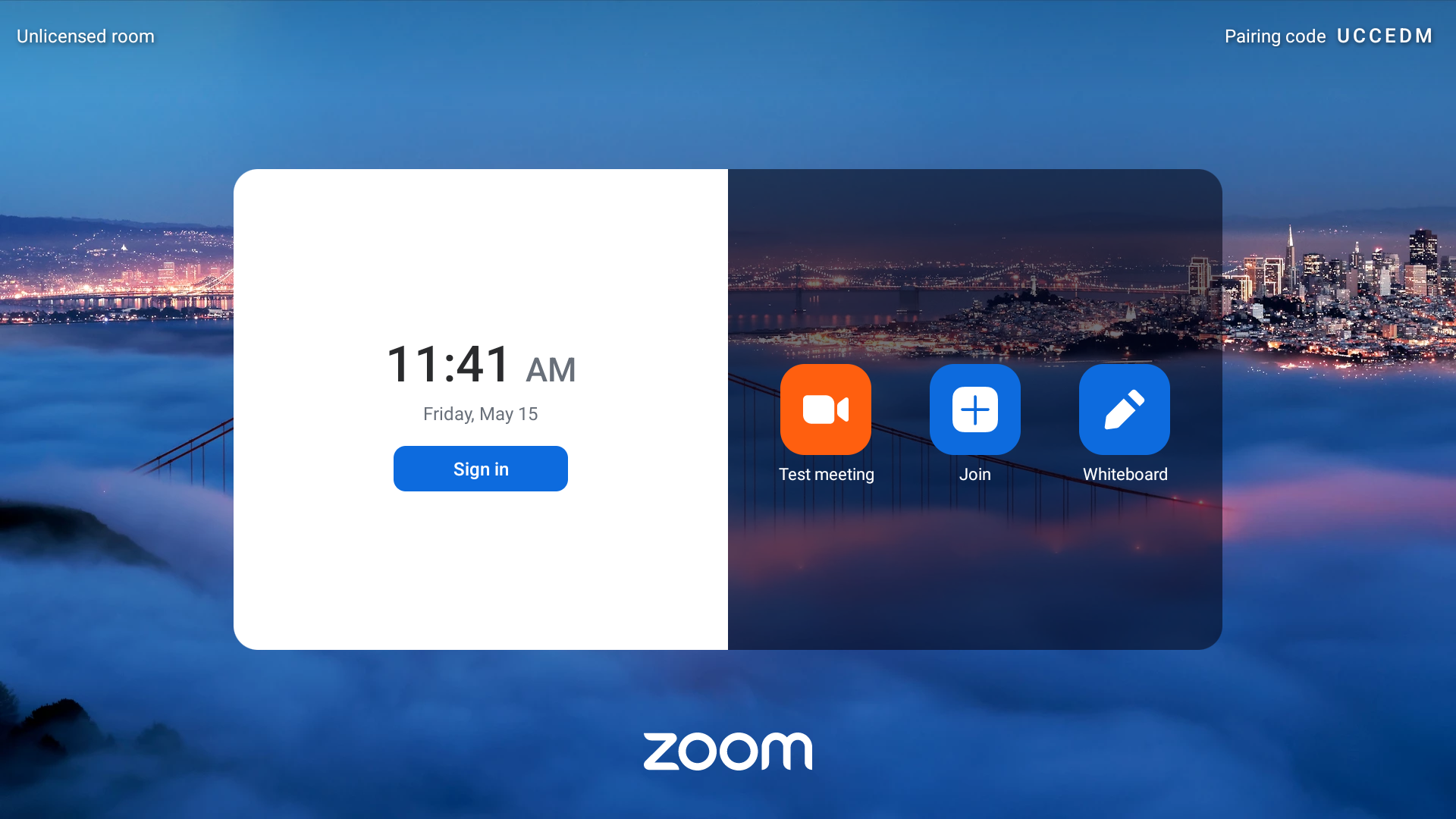
1. Tap “Sign In”
2. On the device, you will see the pairing code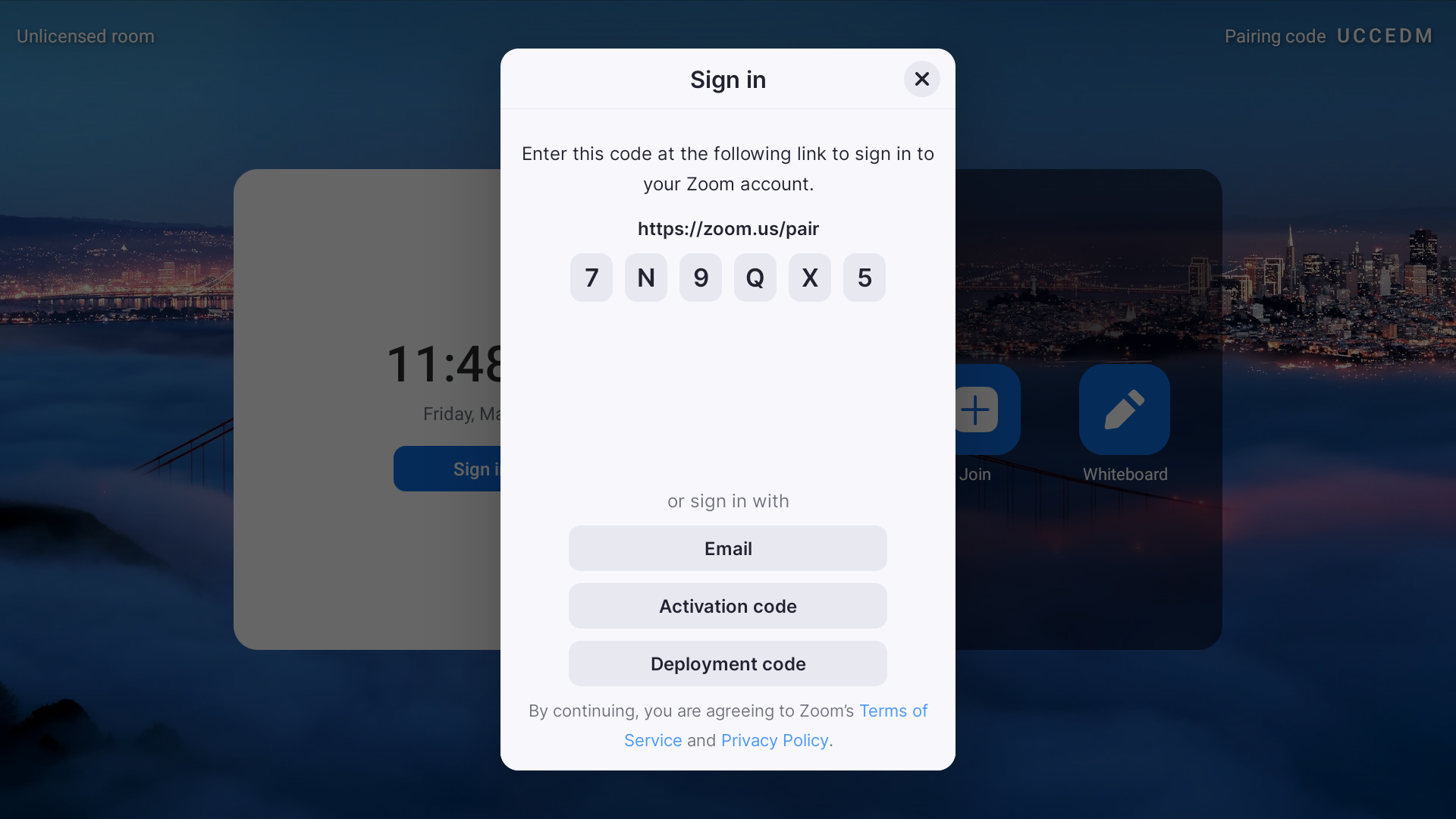
- Go to your laptop, navigate www.zoom.us/pair and enter the pairing code
- Click “ Yes, it’s me” on the pop-up window
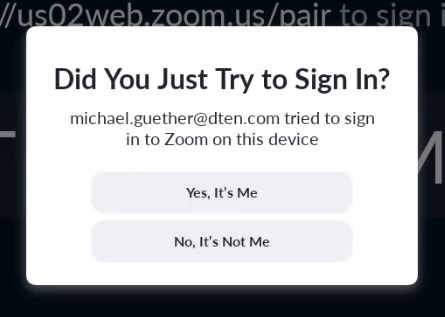
- You are now signed in using SSO
After the Installation
3.1 Now you can start using DTEN ME, before that, be sure to review the following Frequently Asked Questions below:
If you have additional questions or need to contact DTEN Support, please refer to this DTEN Knowledge Base article for more details: HERE.
Was this article helpful?
That’s Great!
Thank you for your feedback
Sorry! We couldn't be helpful
Thank you for your feedback
Feedback sent
We appreciate your effort and will try to fix the article