

Overview
The Lock Dashboard is a security feature engineered to safeguard device configurations from unauthorized changes, ensuring stable and reliable performance. Once optimized by an administrator, device settings can sometimes be altered accidentally or deliberately by users, leading to functionality disruptions. To prevent this, the Lock Dashboard provides a remote locking mechanism that disables the ability to make changes without proper authorization. Once locked via a network-enabled switch, any user attempting to modify the dashboard settings will be prompted to enter a password, ensuring that only authorized personnel can make necessary adjustments. This functionality upholds device integrity, mitigates operational risks, and minimizes downtime due to misconfigurations.
Supporting Product
- DTEN D7X 55 & 75 Windows 3.8.5 and above
- DTEN D7 55 & 75 Windows 2.12.0 and above
Designed Use Case
The Lock Dashboard is ideal for environments where maintaining the integrity of device configurations is critical. For example, in scenarios where devices are set for optimal performance by IT administrators—such as corporate meeting rooms or educational settings—it’s vital to prevent unauthorized modifications that may affect functionality. With Lock Dashboard, administrators can remotely secure the device’s settings by locking the dashboard interface, allowing only those with the correct password to make changes. This feature ensures that configurations remain consistent, preventing potential disruptions caused by accidental or deliberate changes, thus maintaining operational reliability.
Setup Instructions
Prerequisites
DTEN D7X Windows 3.8.5 and above
DTEN D7 Windows 2.12.0 and above
Step-by-step instructions
Orbit-Device Level
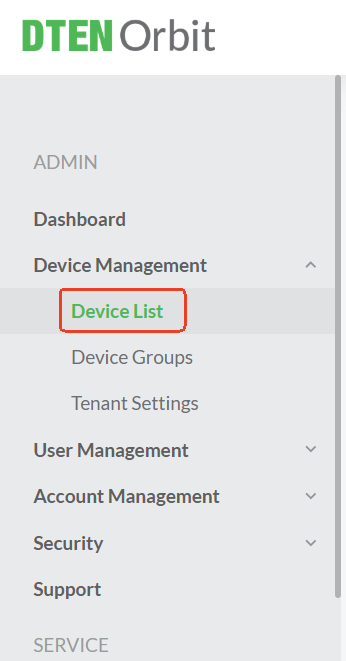
- Log in to Orbit and go to Device Management > Device List.
- Find the device you want to configure and click on it.

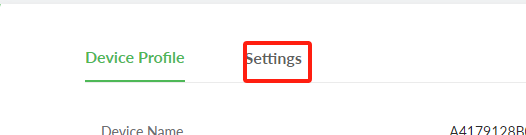
- Click the Settings
- Go to Lock Dashboard and enable it.

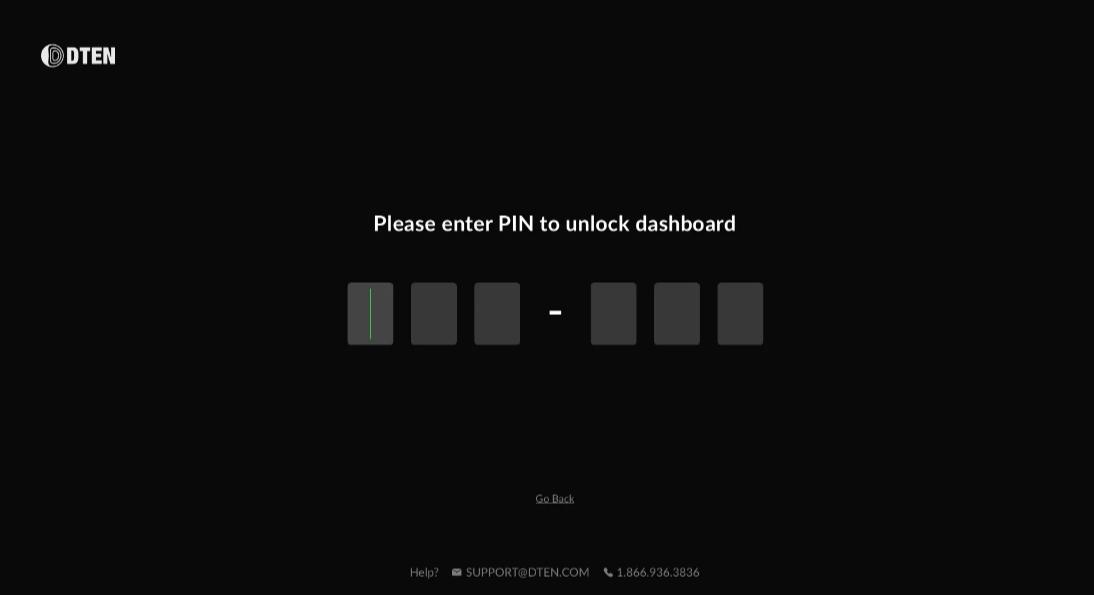
- Once you enable the Lock Dashboard, the user will be blocked when the Menu Hard Key triggers the Dashboard.
The user must enter a PIN to gain access, which is the PIN you set in Orbit when enabling Lock Dashboard.
Orbit-Tenant Level
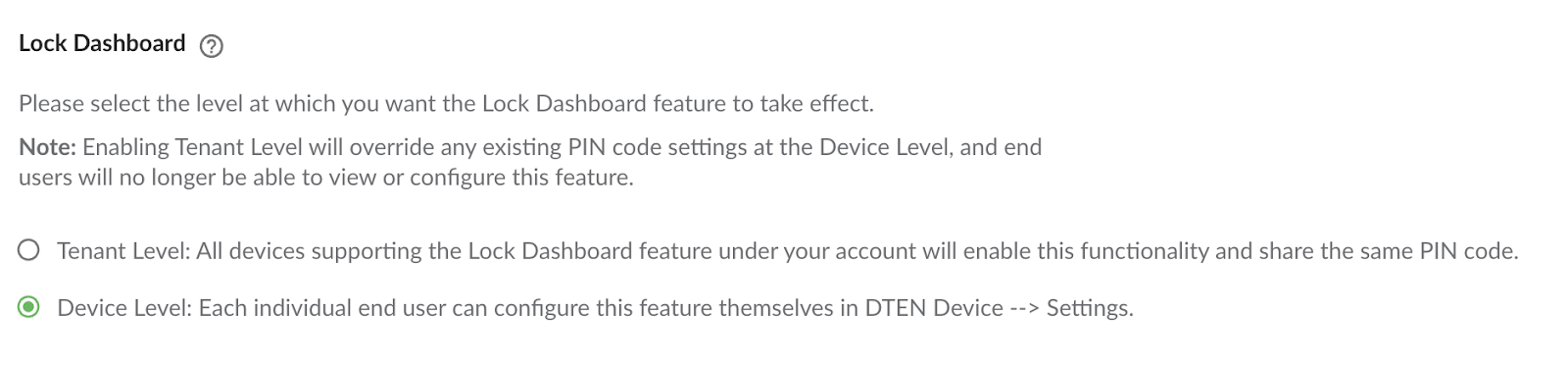
- Go to Device Management > Setting
If you encounter any problems during the forced factory reset process, please contact DTEN support team [How to contact DTEN Support] for further assistance.
Was this article helpful?
That’s Great!
Thank you for your feedback
Sorry! We couldn't be helpful
Thank you for your feedback
Feedback sent
We appreciate your effort and will try to fix the article