
Method 1
- Plugin the Windows-layout wired keyboard onto the PC's blue USB port (the rear, top-left port).
- Press Ctrl + Alt + Delete and you will see the following screen and you will be brought to the Windows lock screen.
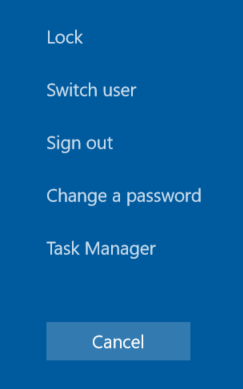
- Click on “Sign Out” and select "Zoom Admin"
Note: Zoom Rooms will start one more time. To exit Zoom Rooms, tap on the screen and press on "Exit" on the bottom left.
The password for the account is:
- ZoomAdmin (access to the PC) - Zoom1234
Method 2
- Touch the D7 display and click on the Settings button

- In the Settings view, select the General tab on the left side
- Select the Windows Settings option to exit D7 into Windows Interface
- Select “Zoom Admin” → enter Zoom1234 to enter the Window Interface
To go back into Zoom Rooms from the D7 Windows environment, please use one of the following options:
- In Windows, tap the Windows icon, then tap the users icon to sign out
- This step takes you into the Zoom Admin window, from here tap the Zoom icon in the lower corner and then enter this Zoom Room password: Zoom123
- In Windows, tap the Windows icon, tap the power button to restart the D7 system.
- Press the D7 menu button on the back of the system to bring up the DTEN dashboard, then tap the restart icon
Steps 2 & 3 will automatically restart the D7 system in Zoom Rooms.
If you have additional questions or need to contact DTEN Support, please refer to this DTEN Knowledge Base article for more details: HERE.
Was this article helpful?
That’s Great!
Thank you for your feedback
Sorry! We couldn't be helpful
Thank you for your feedback
Feedback sent
We appreciate your effort and will try to fix the article