

Overview
Microsoft Teams introduce "Enhanced Framing" to address the challenge of camera management in meetings. This feature automates camera adjustments based on participants' positions and movements, eliminating the need for manual intervention. It saves time and effort by ensuring everyone remains within view without constant adjustments.
Enhanced Framing enhances the overall meeting experience in several ways. Firstly, it improves visibility by intelligently framing participants, allowing them to focus on shared content and maintain eye contact. This promotes better communication and engagement among meeting participants.
Furthermore, the flexibility of choosing "Cloud IntelliFrame", "Room" and "Composite" modes provide additional benefits. In "Cloud IntelliFrame" mode, it enhances focus and framing ofin-room attendees. In "Room" mode, the focus is on framing participants within the meeting room, while the "Composite" mode, also known as "DTEN Smart Framing," is a mode that frames each person in the meeting room with equal-sized frames. "Composite" mode ensures that every participant receives equal attention and visibility.
In summary, Teams's "Enhanced Framing" feature simplifies camera management during meetings, resulting in an efficient and engaging video conferencing experience.
Supporting Product
- DTEN Bar v1.2.6 and above,
- DTEN Mate v2.2.6 and above
Use Case
The "Enhanced Framing" feature in Teams Meetings automates camera adjustments based on participants' positions and movements. It eliminates the need for manual camera management, saving time and improving visibility during meetings. Choosing "Cloud IntelliFrame", "Room" and "Composite" modes ensure equal attention and visibility for all participants, promoting effective communication and collaboration. The feature enhances the overall meeting experience by simplifying camera management, making it more efficient and engaging.
Setup Instruction
Step-by-step instructions
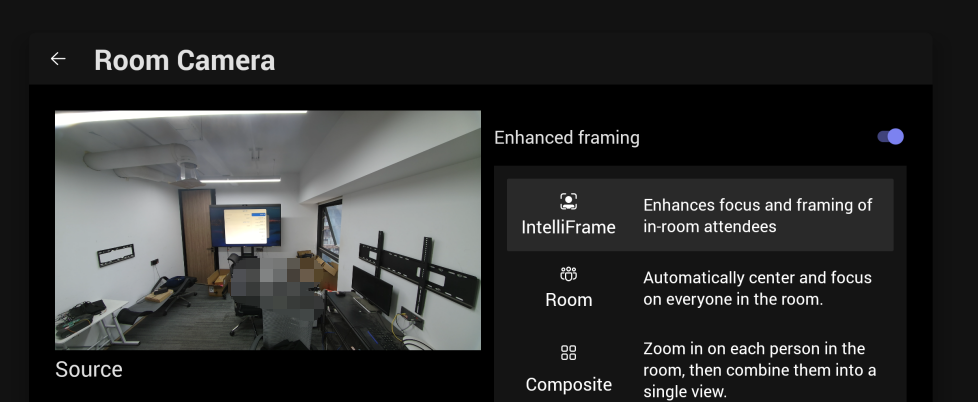
For Bar and Mate, you can do the following on Mate:
-
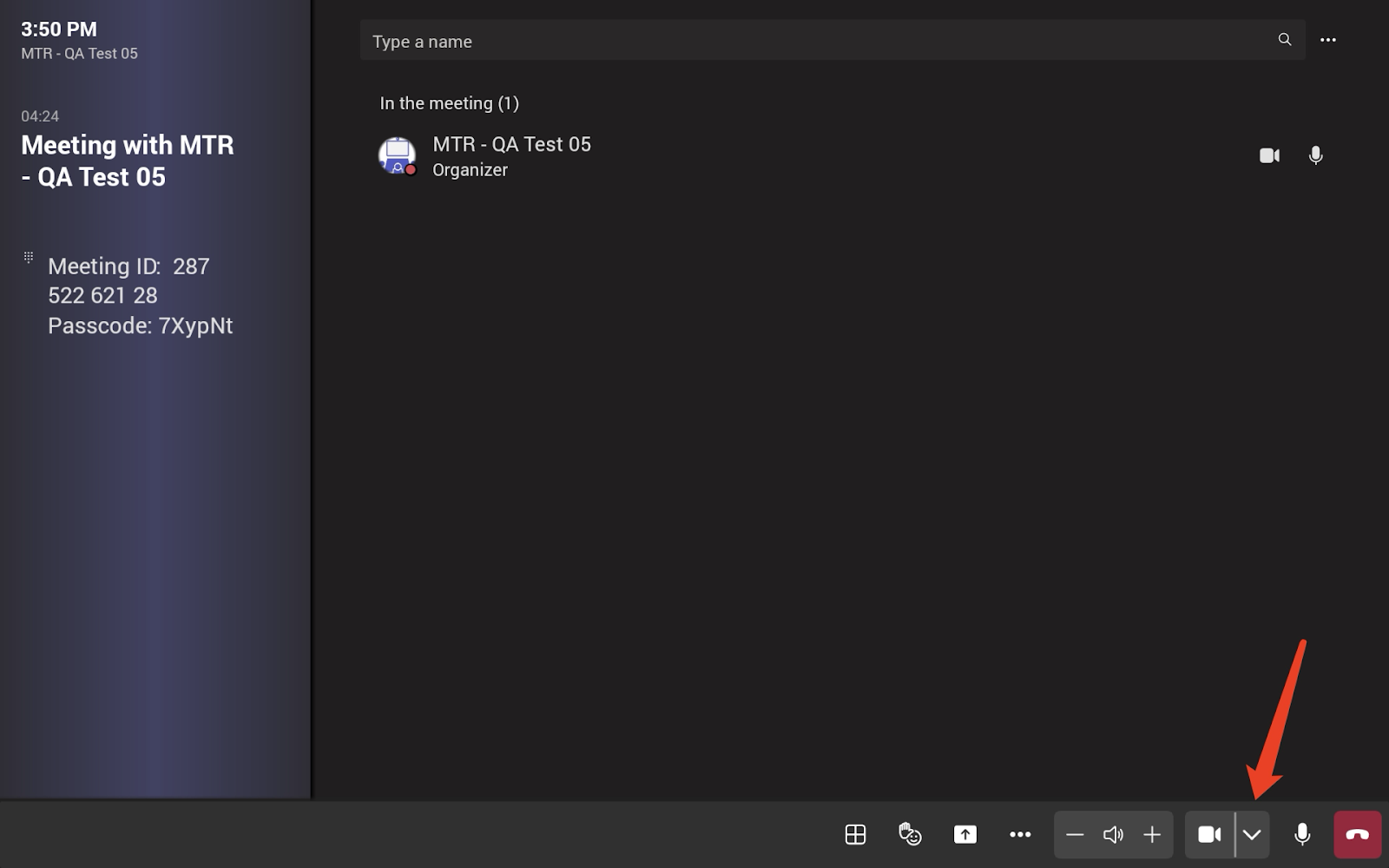
Enter the Teams meeting and click on the arrow next to the camera icon.
-
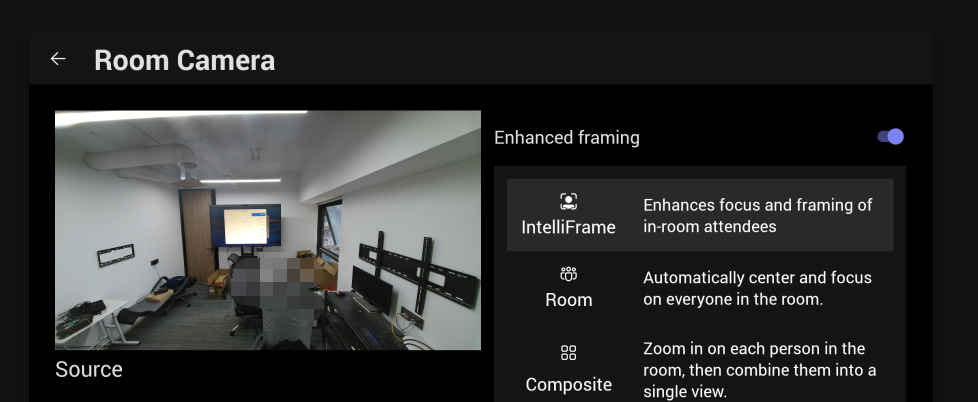
If the Enhanced Framing feature is disabled, please enable it.
-
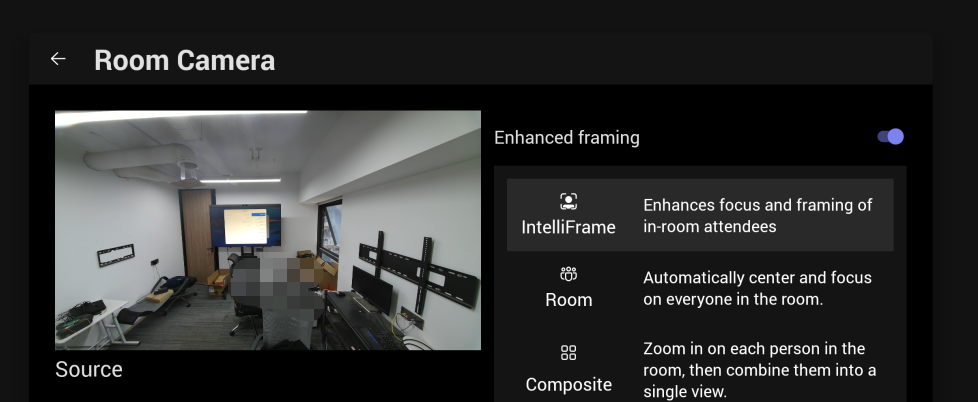
If you want to enhance focus and framing of in-room attendees. Please choose "IntelliFrame" mode.
-
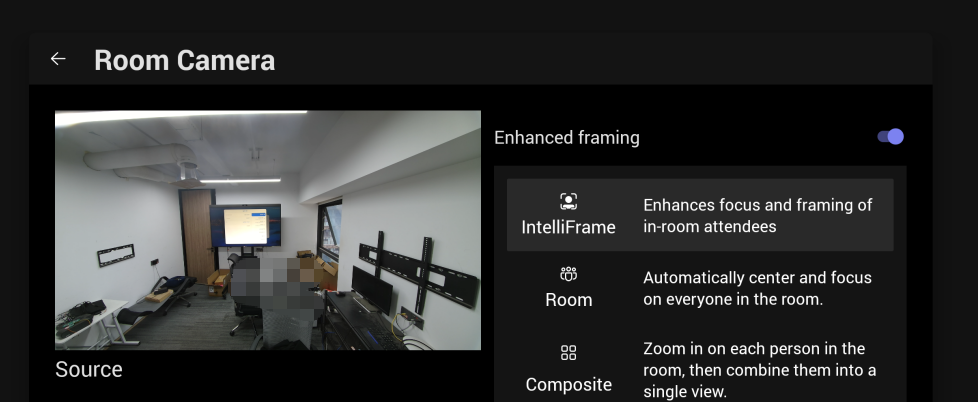
If you want to use automatically centering and focusing on everyone in the room. Please select the "Room" mode.
- If you want to zoom in on each person in theroom, then combine them into asingle view. Please select "Composite" mode.
For D7X Android, you can do the following on the touch screen:
-
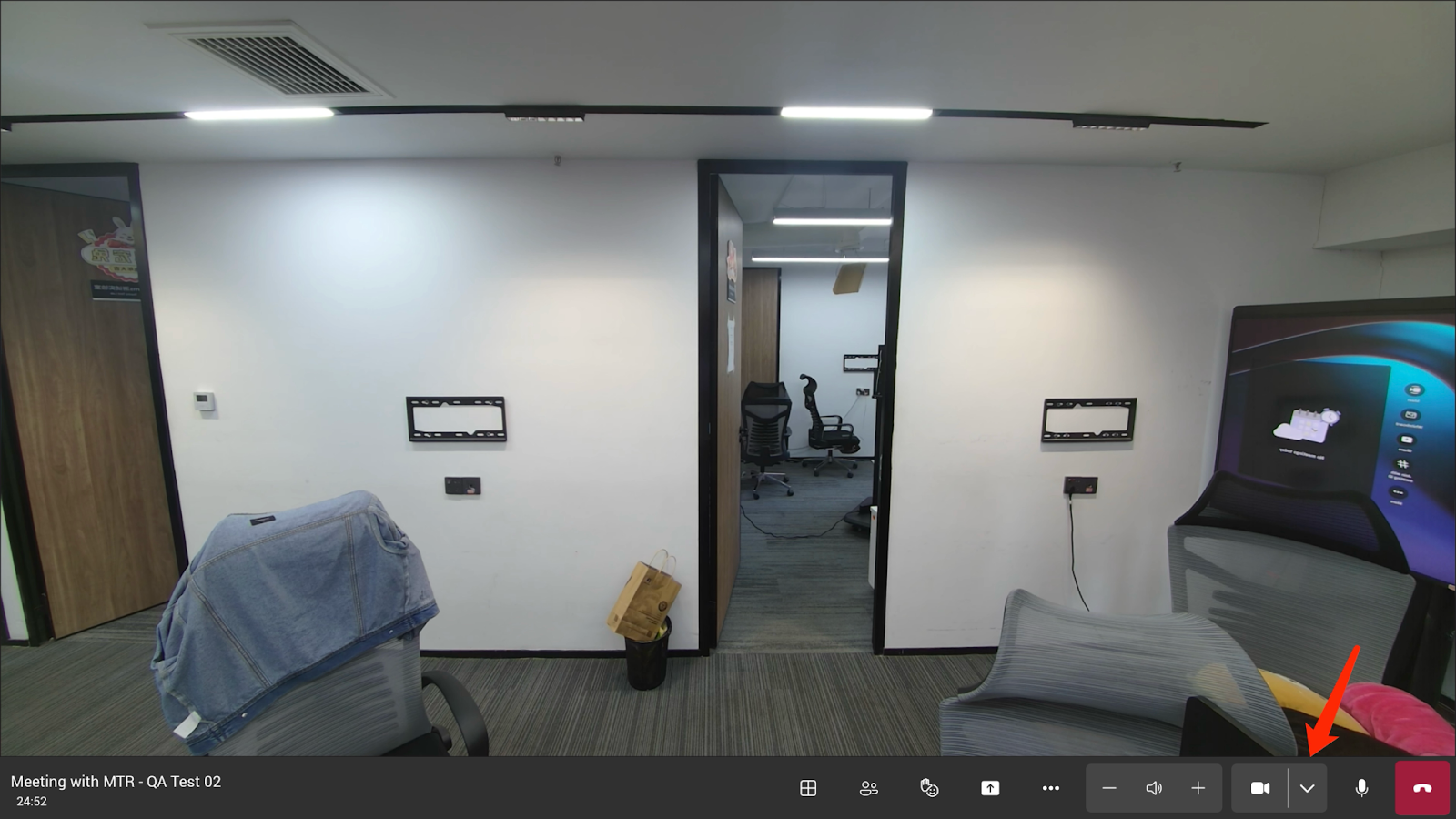
Enter the Teams meeting and click on the arrow next to the camera icon.
-
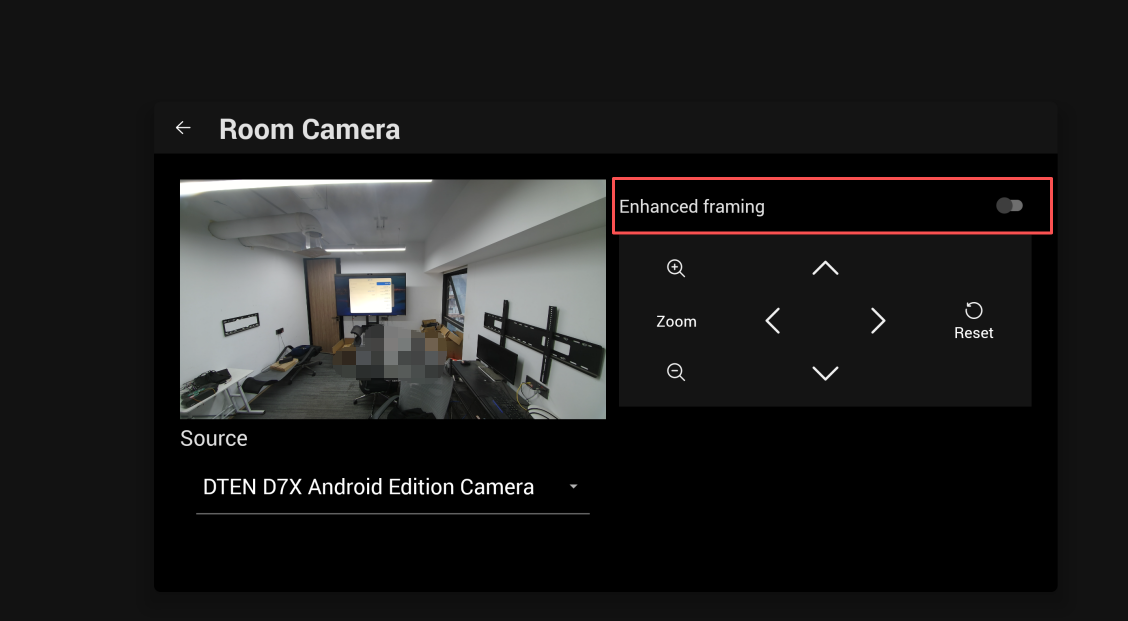
If the Enhanced Framing feature is disabled, please enable it.
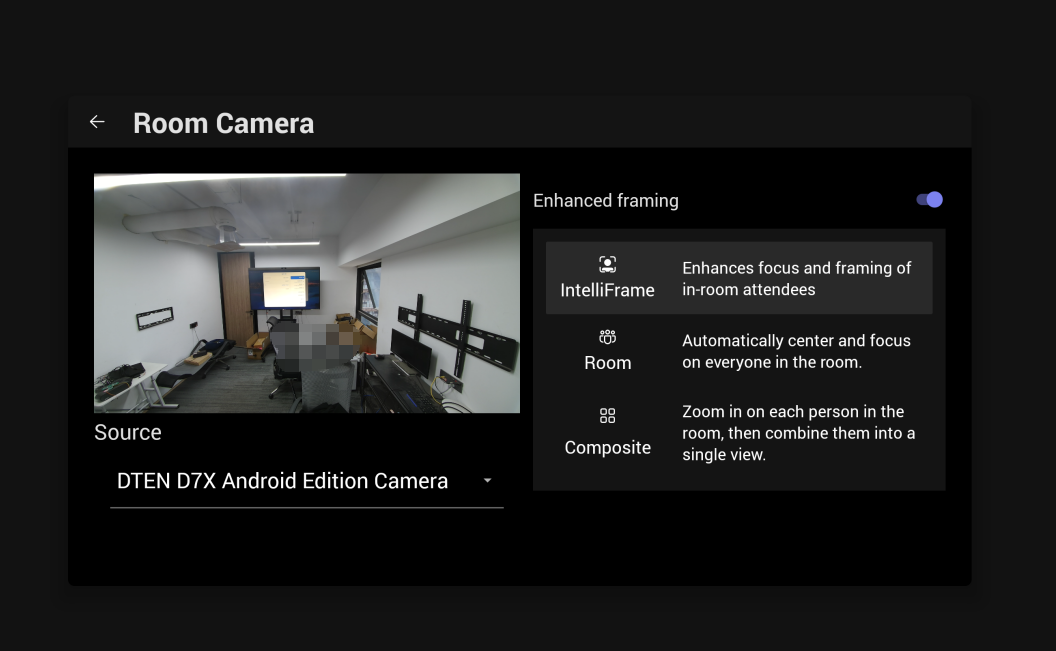
- If you want to enhance focus and framing of in-room attendees. Please select "IntelliFrame" mode.
-
If you want to use automatically centering and focusing on everyone in the room. Please select the "Room" mode.
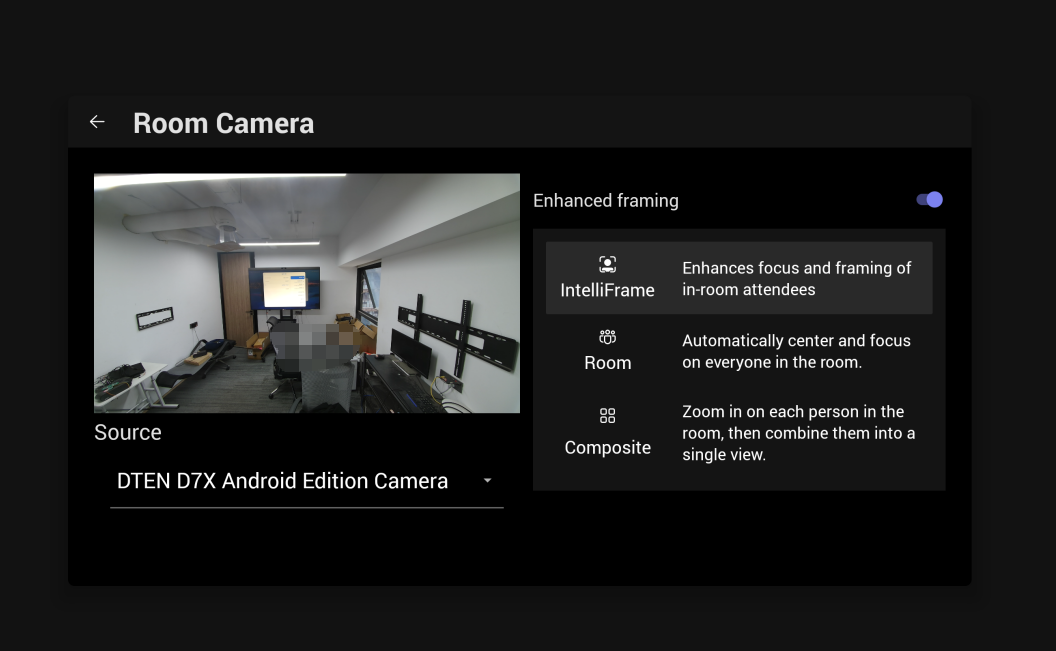
- If you want to zoom in on each person in theroom, then combine them into asingle view. Please select "Composite" mode.
If you have additional questions or need to contact DTEN Support, please refer to this DTEN Knowledge Base article for more details: HERE.
Was this article helpful?
That’s Great!
Thank you for your feedback
Sorry! We couldn't be helpful
Thank you for your feedback
Feedback sent
We appreciate your effort and will try to fix the article