
Overview:
This KB article will provide detailed information on how to enable or disable the email alerts in an Orbit account.
This article covers:
Prerequisites
- Only Orbit account owners and admins have access to the Orbit settings that enable or disable email alerts in an Orbit account. This option is not available for Orbit account members.
Orbit Email Alert Types
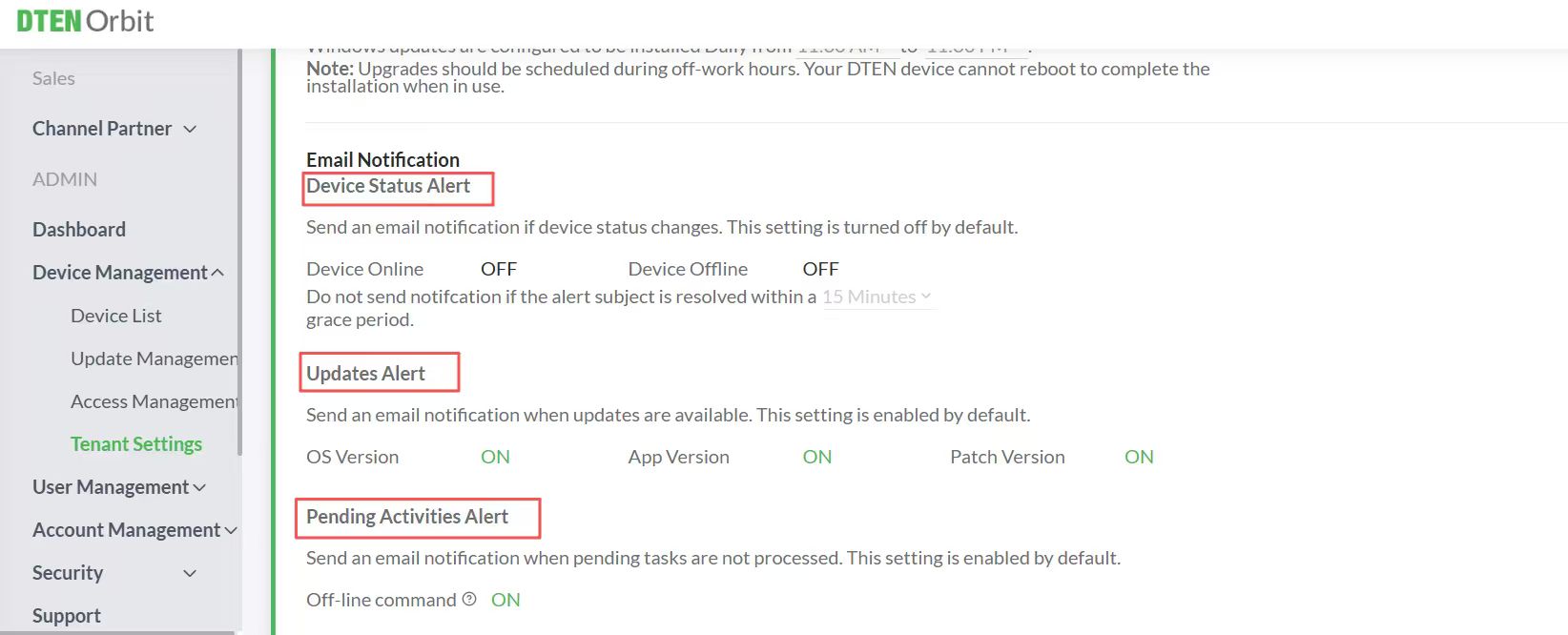
There are currently three types of email alerts in Orbit:
- Device Status Alert
- Send an email notification if device status changes
- Note: This setting is turned off by default
- Updates Alert
- Send an admin email alert when updates are available
- Note: This setting is enabled by default
- Pending Activities Alert
- Send an admin email notification when pending tasks are not processed
- Note: This setting is enabled by default
The screenshots below show the Orbit Email Alerts settings:
How to Enable or Disable Email Alerts in Orbit
- Sign in to Orbit.dten.com
- Select Device Management
- Select Tenant Settings
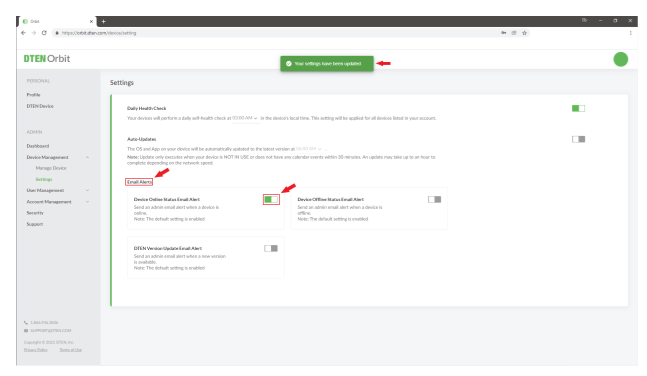
- Under Email Notification, click on the toggle switch to enable or disable the desired email alert
- A message will pop up verifying that your settings have been updated
The screenshots below illustrate the pop up message when the Orbit Email Alert is enabled:
If you have additional questions or need to contact DTEN Support, please refer to this DTEN Knowledge Base article for more details: HERE.
Was this article helpful?
That’s Great!
Thank you for your feedback
Sorry! We couldn't be helpful
Thank you for your feedback
Feedback sent
We appreciate your effort and will try to fix the article