
Overview
This article provides instructions on how to set proxy settings on your DTEN (Android-based) devices.
Prerequisites
- DTEN ON - FW version 1.3.4
- DTEN ME/ ME PRO - FW version 1.9.2
- DTEN GO w/ DTEN MATE - FW version 1.9.2
- DTEN D7X Android - Factory default FW version
- DTNE D7X 27- Factory default FW version
- DTEN Bar- Factory default FW version
To Access the Proxy Settings
- Go to DTEN Dashboard | Settings, and click Proxy Settings (Figure 1).
The Proxy Settings section will expand with the default setting “None” (Figure 2, A).
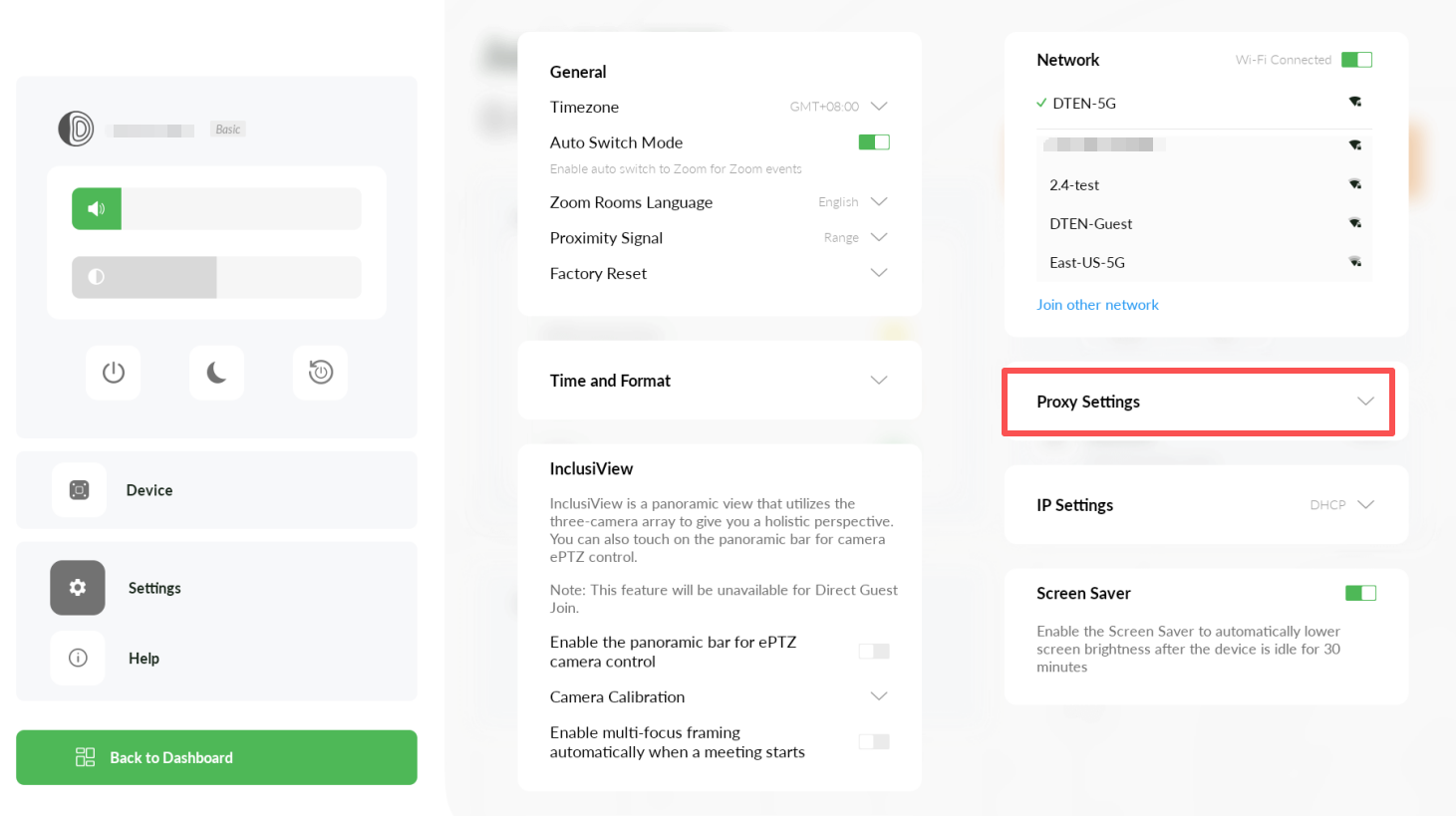
Figure 1. DTEN Dashboard with Proxy Settings
To Enter Proxy Settings Manually:
- Click the Manual option. (Figure 2, B).
- Enter your Secure Web Proxy Server and port. (Figure 2, D).
To Setup Auto-Config for the Proxy Settings
- Click the Auto-Config option and enter the URL information. (Figure 2, C).
Note: If your network administrator provided you with the address of an automatic proxy configuration (.pac) file, enter it in the Auto-Config input field.
To Bypass the Proxy Settings
- Click in the text box below the Bypass Proxy Settings for these Hosts & Domains option and enter the host and domain information for which you need to bypass the proxy settings. (Figure 2, E).
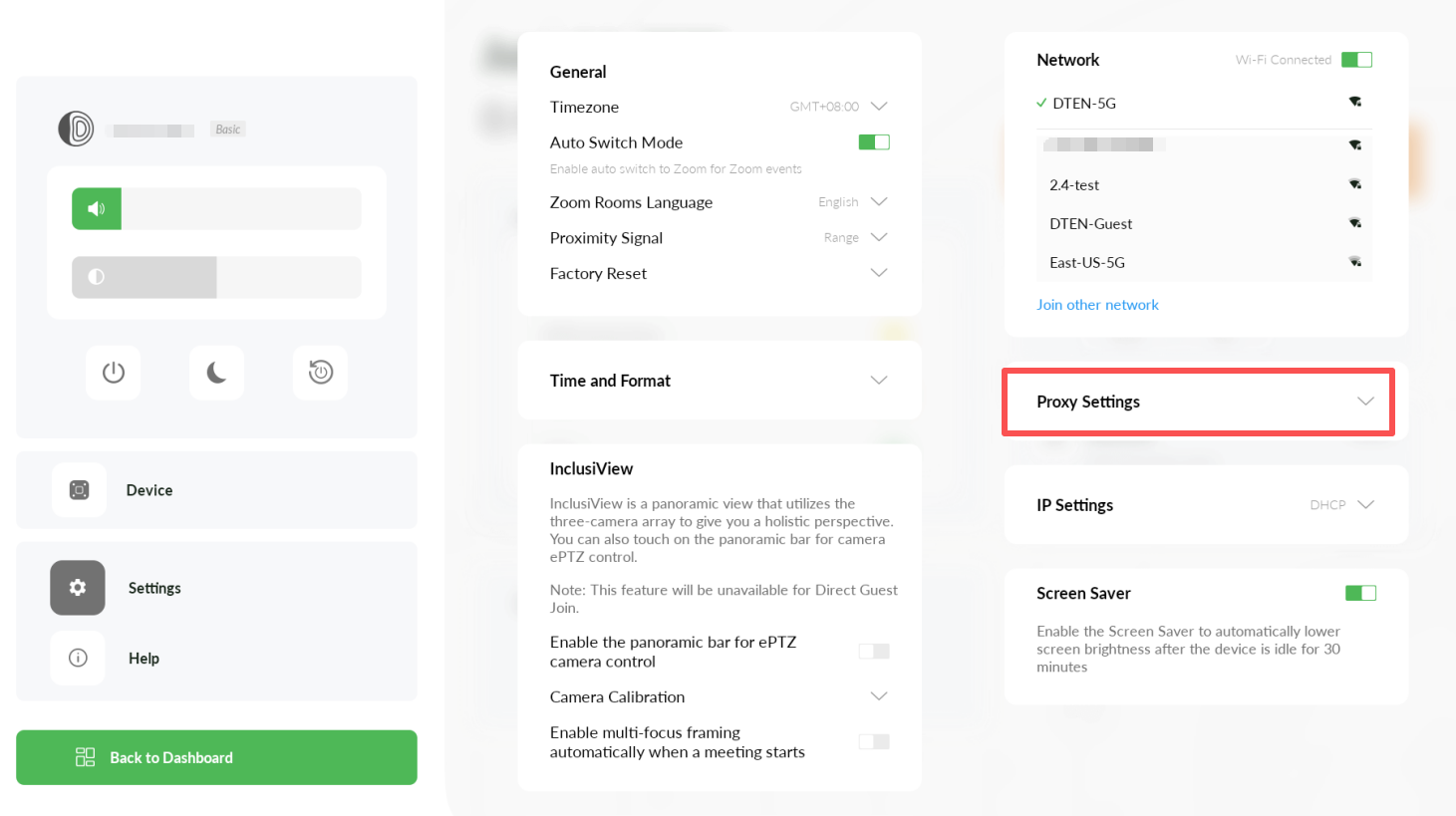
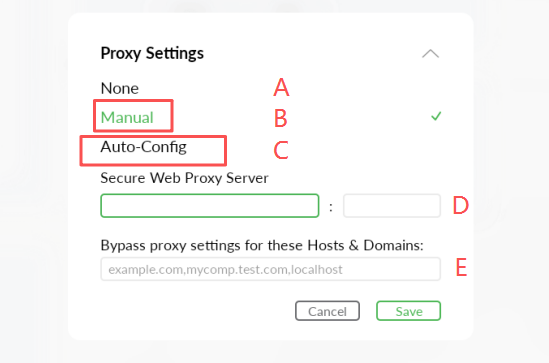
Figure 2. DTEN Proxy Setting Options
If you have additional questions or need to contact DTEN Support, please refer to this DTEN Knowledge Base article for more details: HERE.
Was this article helpful?
That’s Great!
Thank you for your feedback
Sorry! We couldn't be helpful
Thank you for your feedback
Feedback sent
We appreciate your effort and will try to fix the article