
Overview
Document how to add users to your Orbit account.
This article covers:
- Prerequisites
- Inviting a User
- Pending Users DTEN Account Activation Role Management (add/remove admins)
Prerequisites
- To invite users, you have to be an owner or an account admin. This option is not available for members.
Inviting a User
There are three types of users in DTEN Orbit.
- Owner - Full privileges to access and manage the DTEN account.
- Admin- Wide range of privileges to access and manage the DTEN account.
- Member- Access and management of personal and assigned devices, but no account management privileges.
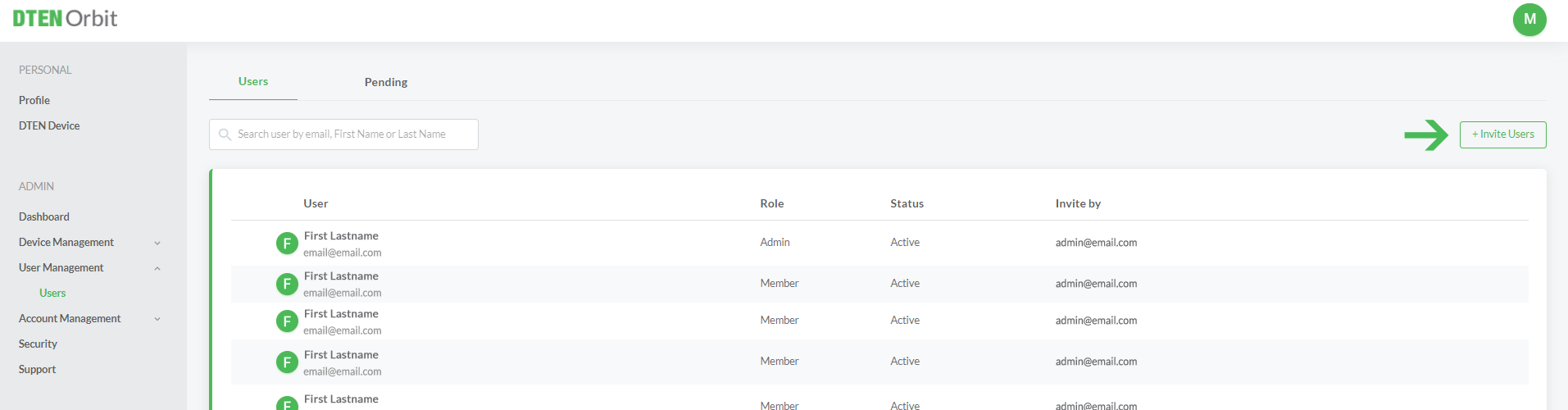
To invite a user to your DTEN Orbit account:
- Sign in to Orbit.dten.com
- Select User Management
- Select Users
- Click on Invite Users
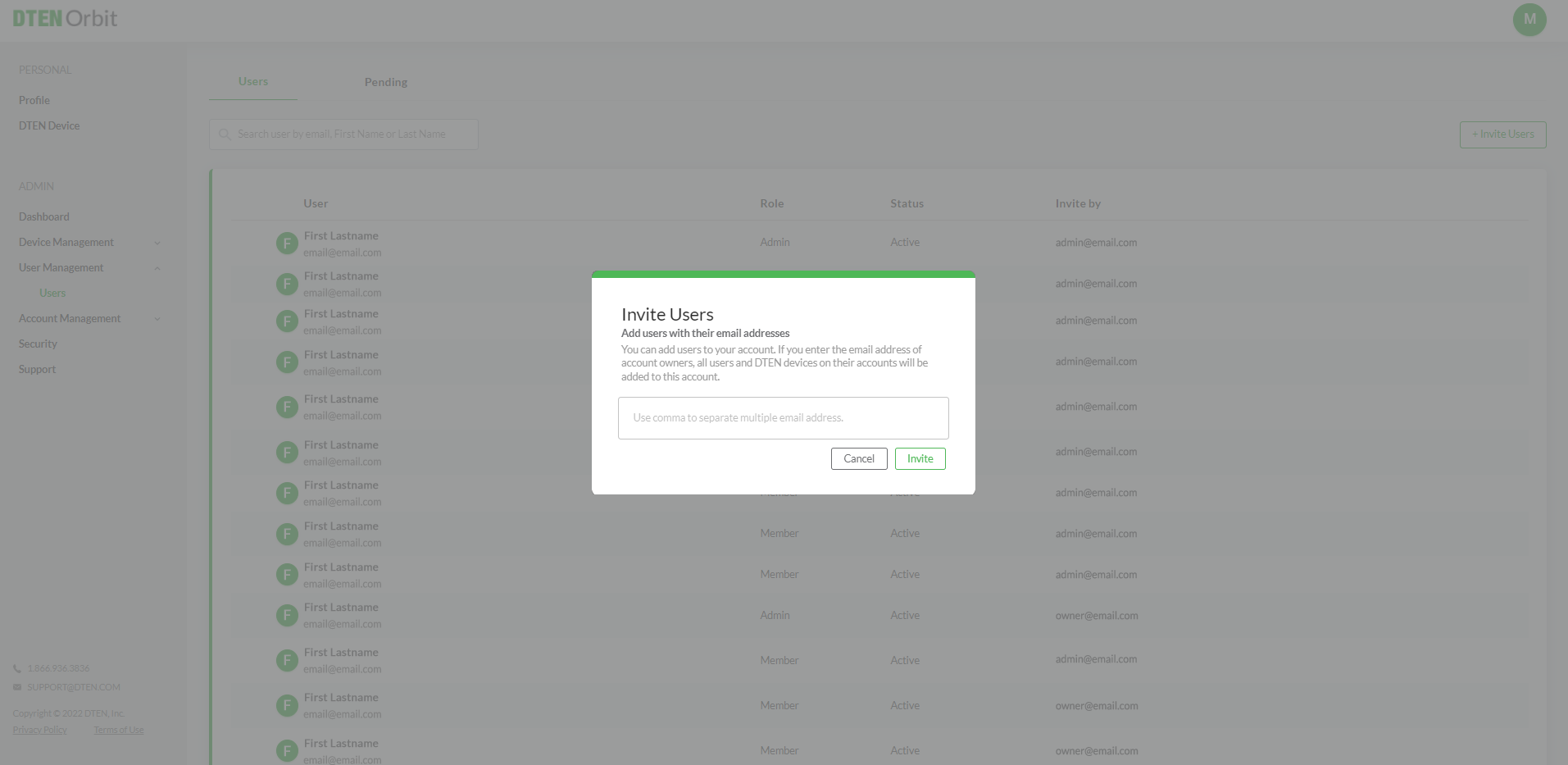
- Add users with their email addresses(use a comma to separate multiple emails)
- Click on Invite
Pending Users
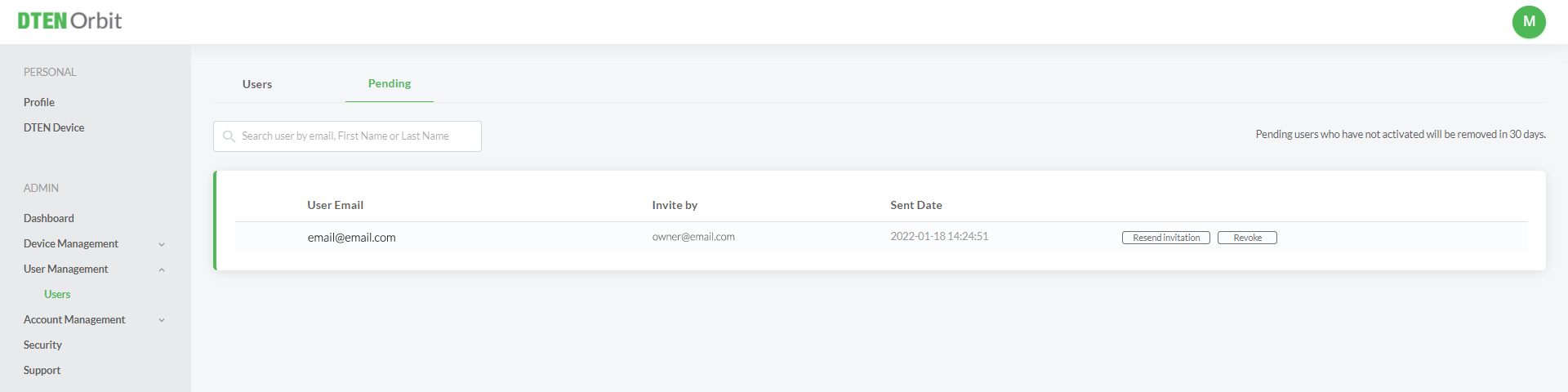
Pending users who have not activated their invitations will be removed in 30 days. Here are the two options to manage pending users:
- Resend Invitation - Resend Orbit invitation
- Revoke - Revoke Orbit Invitation
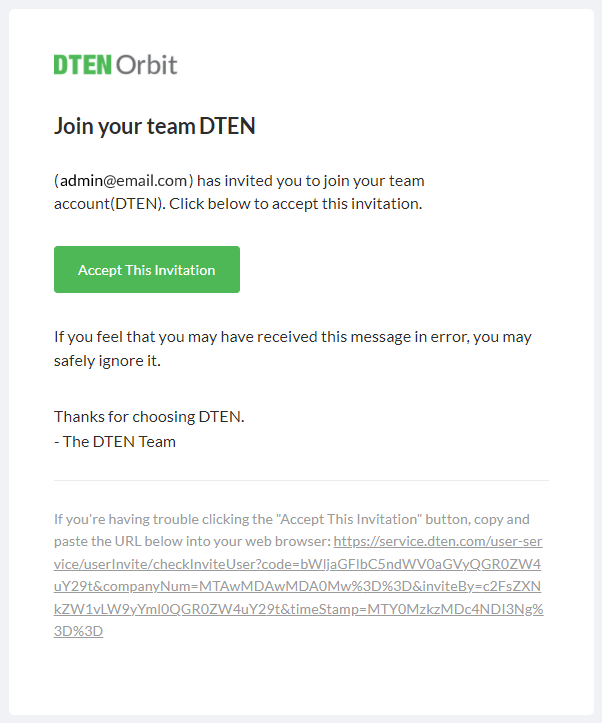
DTEN Account Invitation
- Activate Your DTEN Account - Look for an email with the subject “DTEN Account invitation. Click on Activate Your DTEN Account to Orbit
Role Management (add/remove Admins) :
DTEN Orbit account Owners are the only ones to have the ability to add or remove Admins in the Orbit accounts. Orbit account Admins and Members do not have this ability.
To manage Orbit Admins, please follow these steps:
- User management > roles
- Click on edit next to Admin
- You can add existing members (users) as Admins
- You can remove current admins/ convert them back to members
Roles:
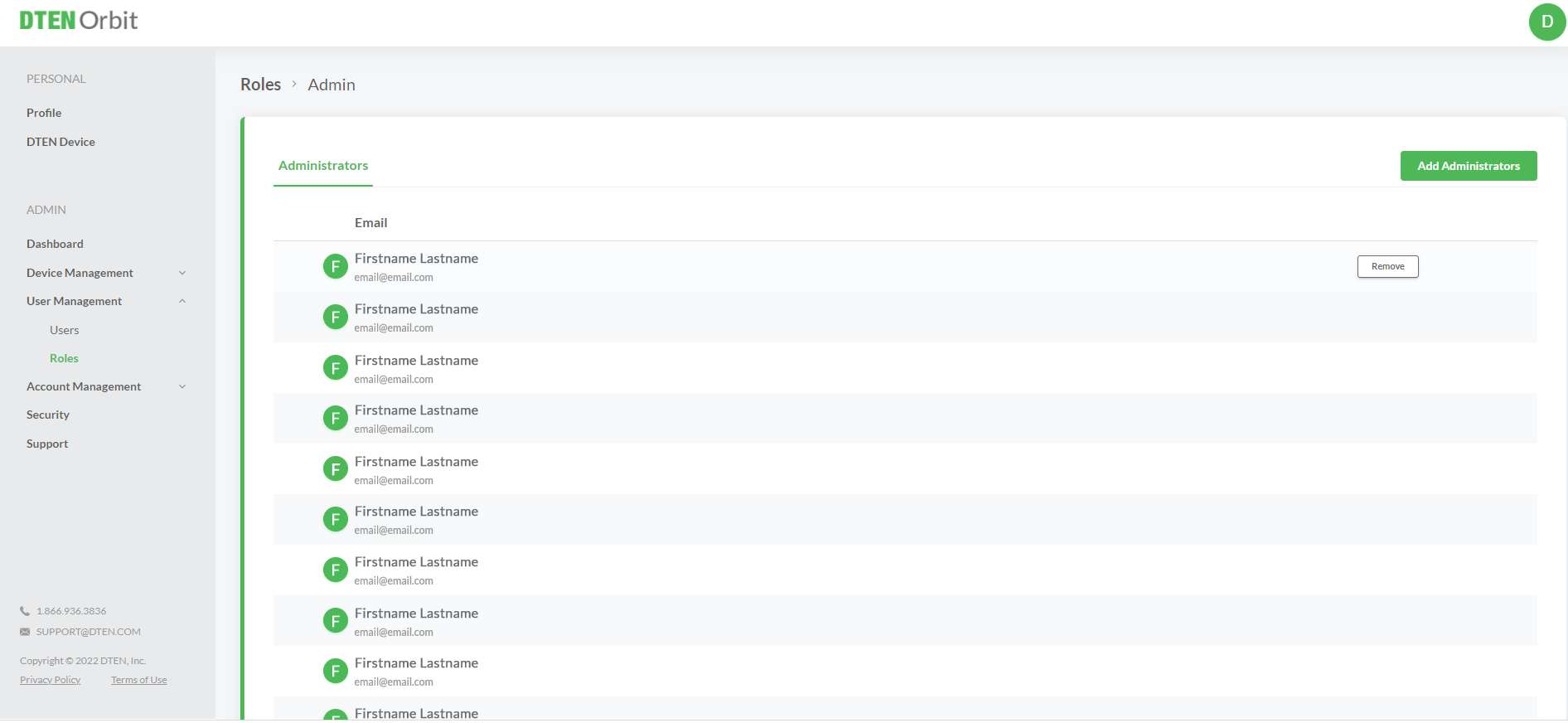
Add Admins 1:
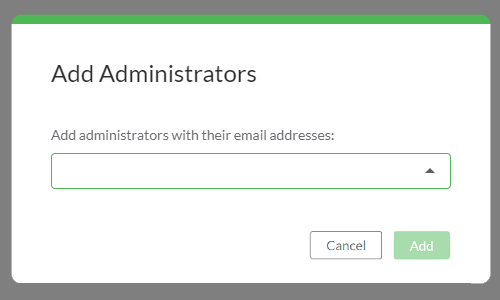
Add Admin 2:
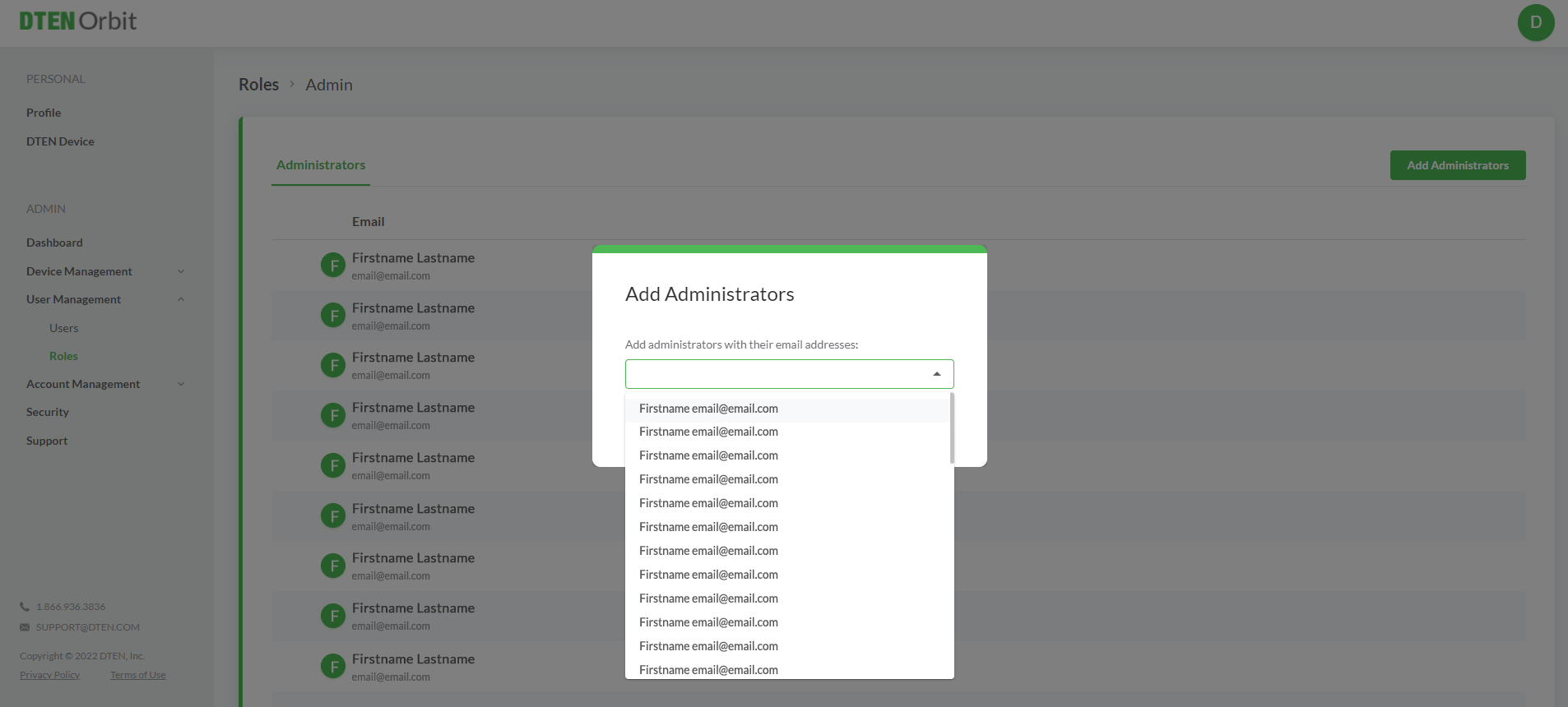
Add Admin 3:
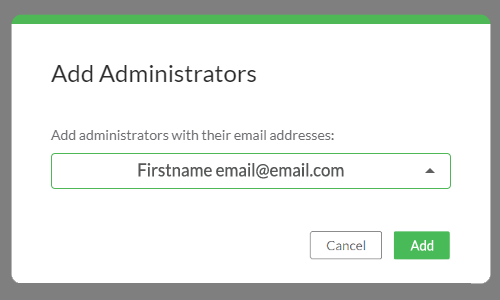
If you have additional questions or need to contact DTEN Support, please refer to this DTEN Knowledge Base article for more details: HERE.
Was this article helpful?
That’s Great!
Thank you for your feedback
Sorry! We couldn't be helpful
Thank you for your feedback
Feedback sent
We appreciate your effort and will try to fix the article