
OVERVIEW
Below are some commonly asked questions about the DTEN Orbit portal. If you are new to Orbit, the answers to our FAQ may help.
Is Orbit pro license associated with the orbit account email or each individual device?
Orbit license is associated with the device and it is not transferrable
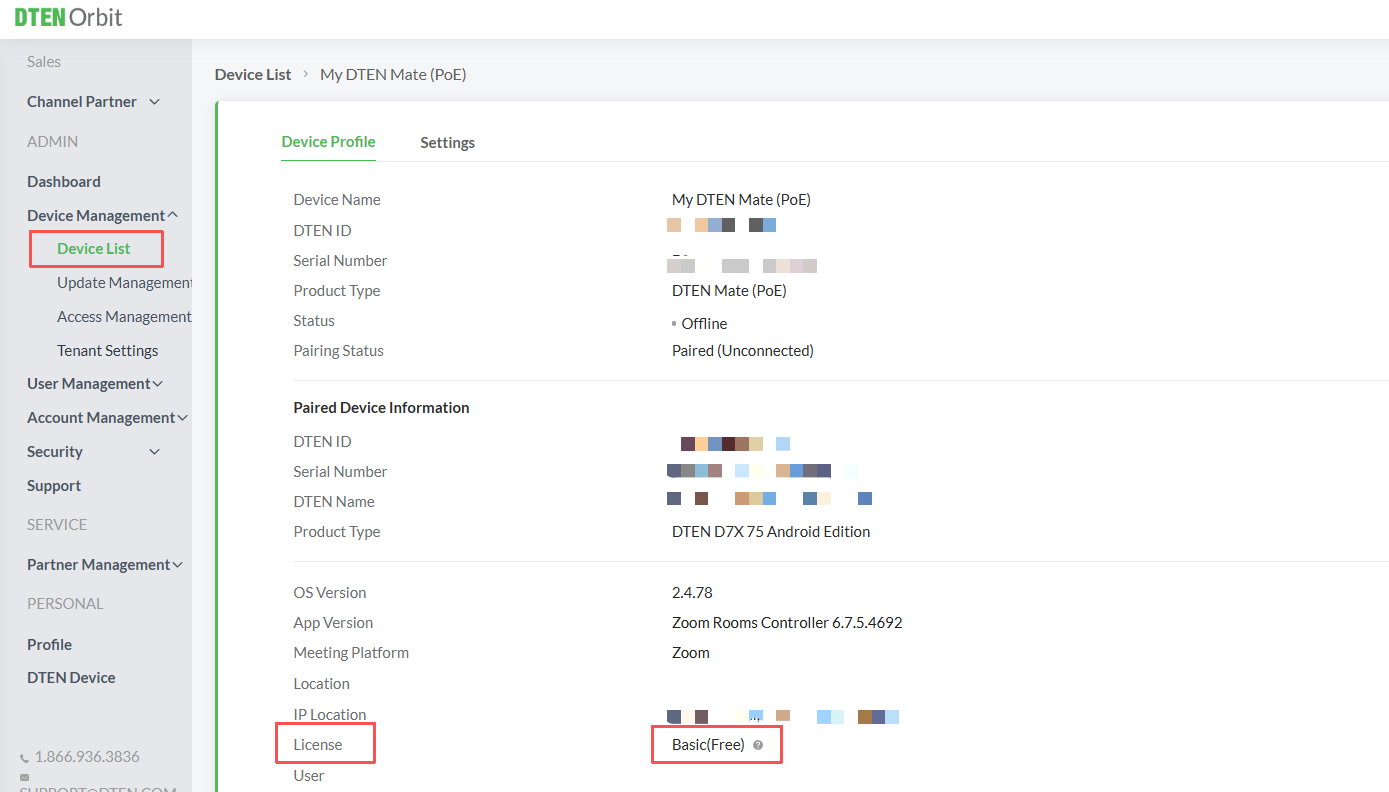
Where do I see my Orbit license type?
Sign into Orbit > device management > device list > click on the device ID number > On the Device Profile
You can view the license type at the bottom.
Orbit Profile
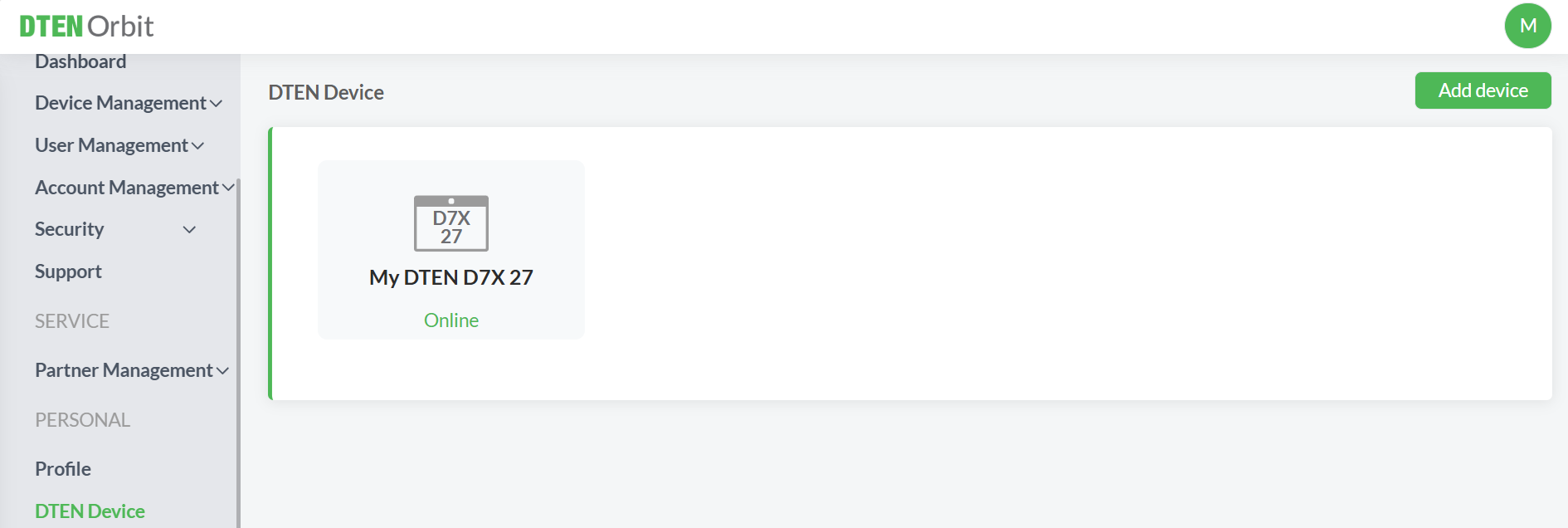
When you log into Orbit, click on profile on the left hand menu. This section displays your general contact information. Click on edit if you wish to alter any of the information
DTEN device:
Under this section, you can easily find the DTEN IDs of the devices under your Orbit account. It also shows the status of the device: whether the device is currently online, if it is on basic license, if the device is healthy. Click on the device ID to go to device settings.
Dashboard includes:
- The total number of devices under your account (personal and user added)
- How many of them are online, how many are offline
- Current device version
- DTEN Product
Device Management > Device List
When you log into Orbit, click on the device management tab on the left hand menu and go to “Device List”. You will see a list of devices under your account.
Where do I update my device on Orbit?
Device management > Device List. If there is a newer version available for a device, you can click on the “update” button next to the device ID. You can also find the update button if you click on the device ID, and go to device profile. Note that the devices can only be updated if they are online.
How to remove a device from Orbit?
Device management > Device List. Scroll all the way to the right and click on the three dots under “Action” to remove a particular device.
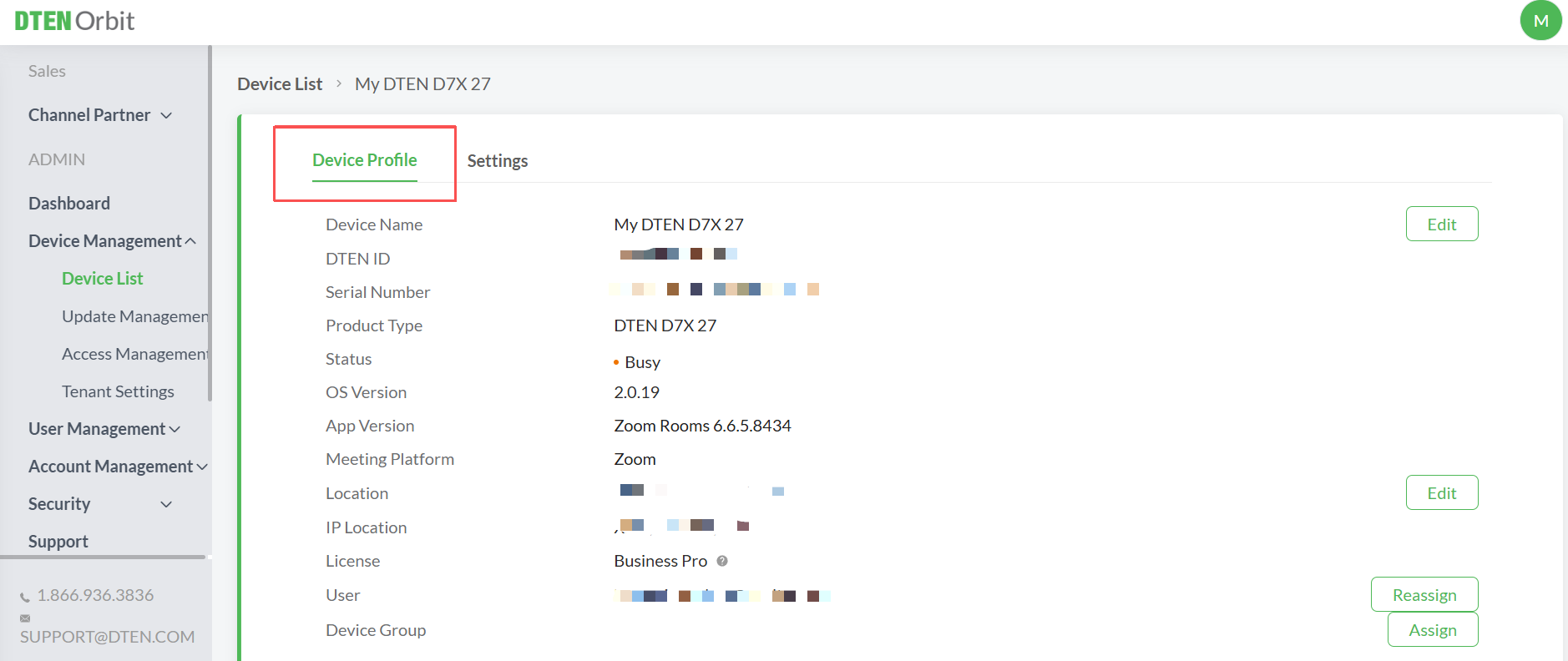
Device Management > Device List > Click on device ID > Device Profile
When you log into Orbit, click on the device management tab on the left hand menu and go to “Device List”. You will see a list of devices under your account. Click on the device ID and go to device profile
Where can I change my device name?
Device management > Device List > click on device ID > device profile. Click on edit next to device name
Where can I change my device location?
Device management > Device List > click on device name > device profile. Click on edit next to device location
Can I assign a particular device to a member?
If you are the owner or admin, Device management > Device List > click on device name > device profile. Click on assign next to users and type in the email of the member you wish to assign the device to. You can also reassign the device to a different member in your account by clicking on reassign.
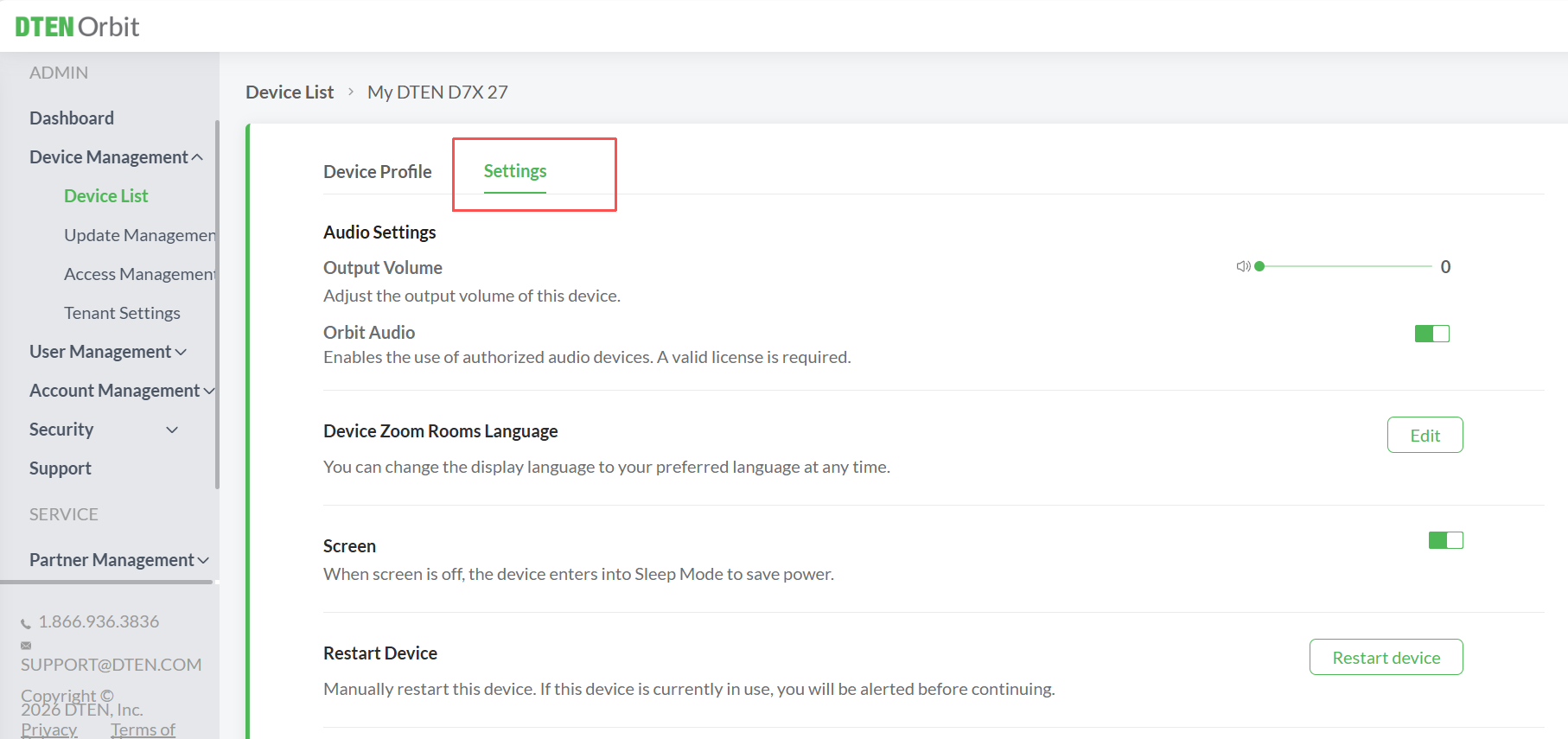
Device Management > Device List > Click on device ID > Settings
When you log into Orbit, click on the device management tab on the left hand menu and go to “Device List”. You will see a list of devices under your account. Click on the device ID and go to settings
Where can I reboot my camera?
Device management > Device list > click on device ID > Settings. If your camera is malfunctioning for some reason, you can reboot it here.

What if my microphone malfunctions?
Device management > Device list > click on device ID > Settings. If your microphone is malfunctioning for some reason, you can reboot it here.

What if my touchscreen malfunctions?
Device management > Device list > click on device ID > Settings. If your touchscreen is malfunctioning for some reason, you can reboot it here.

Where can I adjust the output volume of my device?
Device management > Device list > click on device ID > Settings. Move the slider to the desired output volume of the device. Your device has to be online to enable this feature in Orbit.

Where can I restart my device?
Device management > Device list > click on device ID > Settings. Click on restart device.

Where can I factory reset my device?
Device management > Device list > click on device ID > Settings. Click on factory reset.

How do I auto update a device?
Device Management > Settings. If you enable the auto update tab, the device will update automatically when a new version becomes available.
How do I add users to my account?
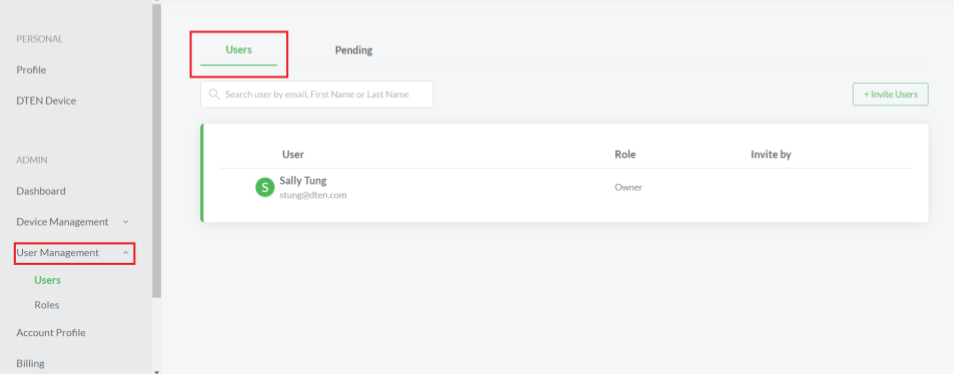
User Management > Users. You can add users to your Orbit account by clicking on “+ Invite Users” on the top right hand side. When you invite a user, all the DTEN IDs from the users account will be added to your account.
How do I add/ remove admins?
User Management > Roles. Click on Edit next to admin and enter the email of the member you wish to make admin. If you wish to remove admin, click on remove. Note that you can only edit admin access if you are the owner of the primary account.
How do I deactivate a user?
User Management > Users. Click on the deactivate tab next to a members name. Once deactivated, the member will not be able to log back into their orbit account. Note that you can only deactivate a member if you are the owner of an account.
Can I re-invite a member once deactivated?
Currently, no.
How to get to Dashboard/menu from zoom rooms?
Use multitouch, which is a minimum of 3 fingers to swipe right on the screen. Alternatively, you can click on the Dashboard/menu button which is the second button from top down on the back of the ME.
My device is connected to the network and functioning, but Orbit status shows offline?
Try connecting the ME to an open source firewall like a mobile phone hotspot. If that doesn’t work, try logging into Orbit in incognito mode. Your browser might need to be updated/ clear browser cache.
How do I add a new device in OOBE to my Orbit account?
Device Management > Device list. Click on “add device” on the top right hand side. Generate one code each for every DTEN device you plan to activate. When you get to the activation screen on the device after setting it up for the first time, click on “I have a code” at the bottom and enter the six digit code you just generated in Orbit.
Can I add an existing device (not in OOBE) to my Orbit account locally?
Not at the moment. If you are DTEN staff or a beta customer currently enrolled in a program, email us your device DTEN ID, orbit account email, and a short description. We will add the devices to your account
Does Orbit facilitate windows updates, or is it only limited to firmware/ZR?
Orbit does not facilitate windows update
If you have additional questions or need to contact DTEN Support, please refer to this DTEN Knowledge Base article for more details: HERE.
Was this article helpful?
That’s Great!
Thank you for your feedback
Sorry! We couldn't be helpful
Thank you for your feedback
Feedback sent
We appreciate your effort and will try to fix the article