
Overview
Zoom Rooms can display all upcoming meeting on your TV, monitor or projector display.
This article covers:
- Configuring all Zoom Rooms to Display Meeting List on TV
- Configuring a Set of Zoom Rooms to Display Meeting List on TV
Prerequisites
- Meetings must be scheduled for the same day
- Schedule using Google or Microsoft Exchange calendar integration
Configuring all Zoom Rooms to Display Meeting List on TV
- Sign in to the Zoom web portal.
- Click Room Management > Zoom Rooms.
- Click Account Settings.

- Click the Meeting tab.
- Navigate to the Display meeting list on TV option and verify that the setting is enabled.

If the setting is disabled, click the Status toggle to enable it. If a verification dialog displays, choose Turn On to verify the change.
Configuring a Set of Zoom Rooms to Display Meeting List on TV
- Sign in to the Zoom web portal.
- Click Room Management > Zoom Rooms.
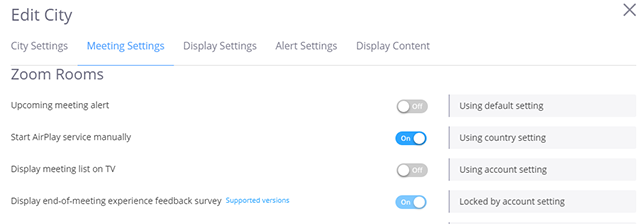
- Go to Meeting Settings and enable the option Display meeting list on TV.
- Click Save Changes
If you have additional questions or need to contact DTEN Support, please refer to this DTEN Knowledge Base article for more details: HERE.
Was this article helpful?
That’s Great!
Thank you for your feedback
Sorry! We couldn't be helpful
Thank you for your feedback
Feedback sent
We appreciate your effort and will try to fix the article