
OVERVIEW
Try these troubleshooting steps if the DTEN D7 unit is showing a black screen after a manual Zoom Rooms installation.
This article covers:
- Troubleshooting Black Screen Issues
Troubleshooting Black Screen Issues
If your DTEN D7 unit is experiencing Black Screen after a manual Zoom Rooms app installation, please try the following steps to troubleshoot these issues.
Plug in a Windows wired USB keyboard into one of the blue-colored USB ports on the PC.
- Look to the left side of the display and find the PC embedded into the side.
- Find the PC’s “power” button. Press and hold for 4 seconds to completely shut down the PC.
- Press the “power” button again to power on the PC.
- Press down on the CTRL + F4 keys to place the PC into recovery while the screen shows the following:(Note: If you have a Logitech keyboard, press down on the CTRL + Function + F4 keys)
- After approximately 5 minutes of executing, the PC will enter recovery while in the “Out of Box” (OOB) state.
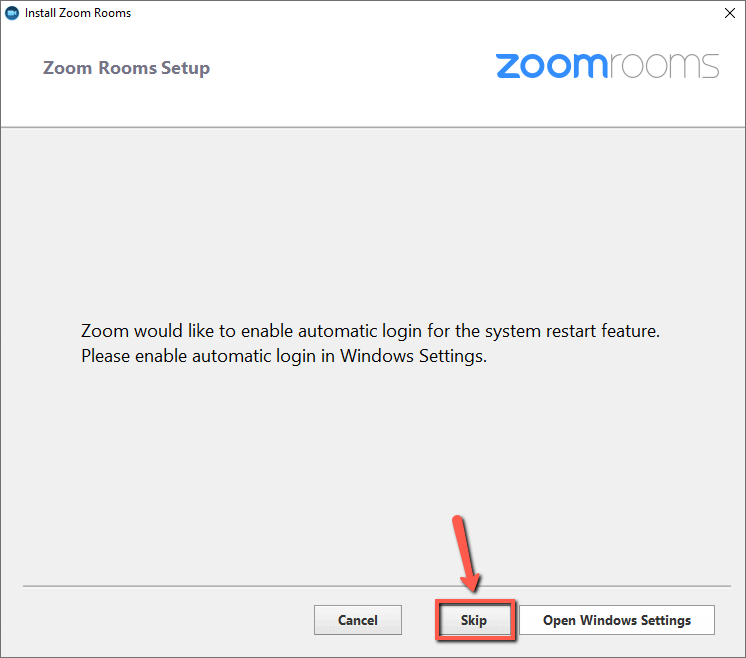
Please note: If you reinstall Zoom Rooms, please always make sure to Skip the "Enable Automatic Login" Window
If you have additional questions or need to contact DTEN Support, please refer to this DTEN Knowledge Base article for more details: HERE.
Was this article helpful?
That’s Great!
Thank you for your feedback
Sorry! We couldn't be helpful
Thank you for your feedback
Feedback sent
We appreciate your effort and will try to fix the article