
All DTEN devices come with the Windows automatics update disabled. In case you see the Windows update notification, please follow the steps below:
You can do this as follows:
- Please plug in the Windows-layout wired keyboard onto the PC's blue USB port (the rear, top-left port).
- Press Ctrl + Alt + Delete and you will see the following screen and you will be brought to the Windows lock screen.
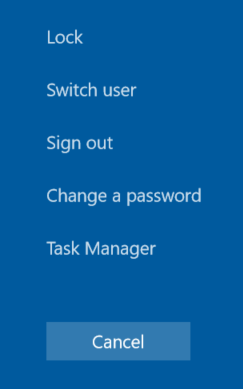
- Please click on “Sign Out” and select "Zoom Admin"
Please note: Zoom Rooms will start one more time. To exit Zoom Rooms, tap on the screen and press on "Exit" on the bottom left.
The passwords for the account is:
- ZoomAdmin (access to the PC) - Zoom1234
Once you are in Windows:
- Open the command prompt "CMD"
-
Run the below command.
- net stop wuauserv
- After that, you should see the following:
C:\Users\Administrator>net stop wuauserv The Windows Update service is stopping. The Windows Update service was stopped successfully.
You can also do the following:
You can make sure the Windows Update service is turned off by going to Control Panel > set tge "View by" (top right corner) to Large icons -> click Administrative Tools > Computer Management or searching for "Services". Select ‘Services and Applications’ and click ‘Services’. Find the Windows update and set the startup type to disabled and stop the service if it is running.
If you have additional questions or need to contact DTEN Support, please refer to this DTEN Knowledge Base article for more details: HERE.
Was this article helpful?
That’s Great!
Thank you for your feedback
Sorry! We couldn't be helpful
Thank you for your feedback
Feedback sent
We appreciate your effort and will try to fix the article