
OVERVIEW
In certain situations, DTEN Support may request customers to access and retrieve the system logs from the DTEN D7 system as part of the troubleshooting process. Below are instructions and steps on how to get the system logs for DTEN, Zoom and Windows.
How to access and retrieve system logs from DTEN D7 55” device?
Please try the following steps to access and retrieve system logs.
We need the following information:
- Device ID
- Is your device in a Closed Network/Open Network?
- Logs
- DTEN Log
- Zoom Log
- Windows Log
How to get the Device ID?
1. Press the third button from the top on the right-back of the unit. This will bring up a pop-up
2. Press this button 4 more times and provide DTEN Support with the DTEN ID
Access to Windows on the DTEN D7 55” device
-
The following steps are for D7 55” devices with Zoom Rooms app v4.6.1 and lower
- DTEN Log
- Zoom Log
- Windows Log
- Exit to the windows using a keyboard plugged into “Blue” USB port on the PC
- On your keyboard, click Ctrl + Alt + Delete
- Click “sign out” → Select “Zoom Admin” → enter Zoom1234 to enter Window Interface
-
Alternatively, the following steps are for D7 55” devices with Zoom Rooms app v4.6.2 and higher
- DTEN Log
- Zoom Log
- Windows Log
- Touch the D7 display and click on the Settings button
- In the Settings view, select the Room button on the left side
- Select the Windows Settings option to exit D7 into Windows Interface
- Click “sign out” → Select “Zoom Admin” → enter Zoom1234 to enter Window Interface
- There are three logs to get
How do I get the DTEN log?
-
Start → Double click “Recycle Bin” → Select “Local Disk”(C:)

- Go to DTEN folder → DTENServer → Copy the text file to your desktop
- Go back to DTEN → DTENOTASETUP → Copy the text file to your desktop
- Go back to DTEN → DTENOTA → Copy the text file to your desktop
-
DTEN Log location:
- a) C:\DTEN\DTENOTA\DTENOTA*.log
- b) C:\DTEN\DTENServer\DTENServer*.log
How do I get Zoom Log?
- In the Local Disk (C:) ---> Click “View” on the menu bar → Check “hidden items”

- Click “Users” folder ---> Select “Zoom” → Select “AppData”--> Click “Roaming”
- Click “ZoomRooms” → Copy Logs folder to a new folder (you can call it Zoom log)
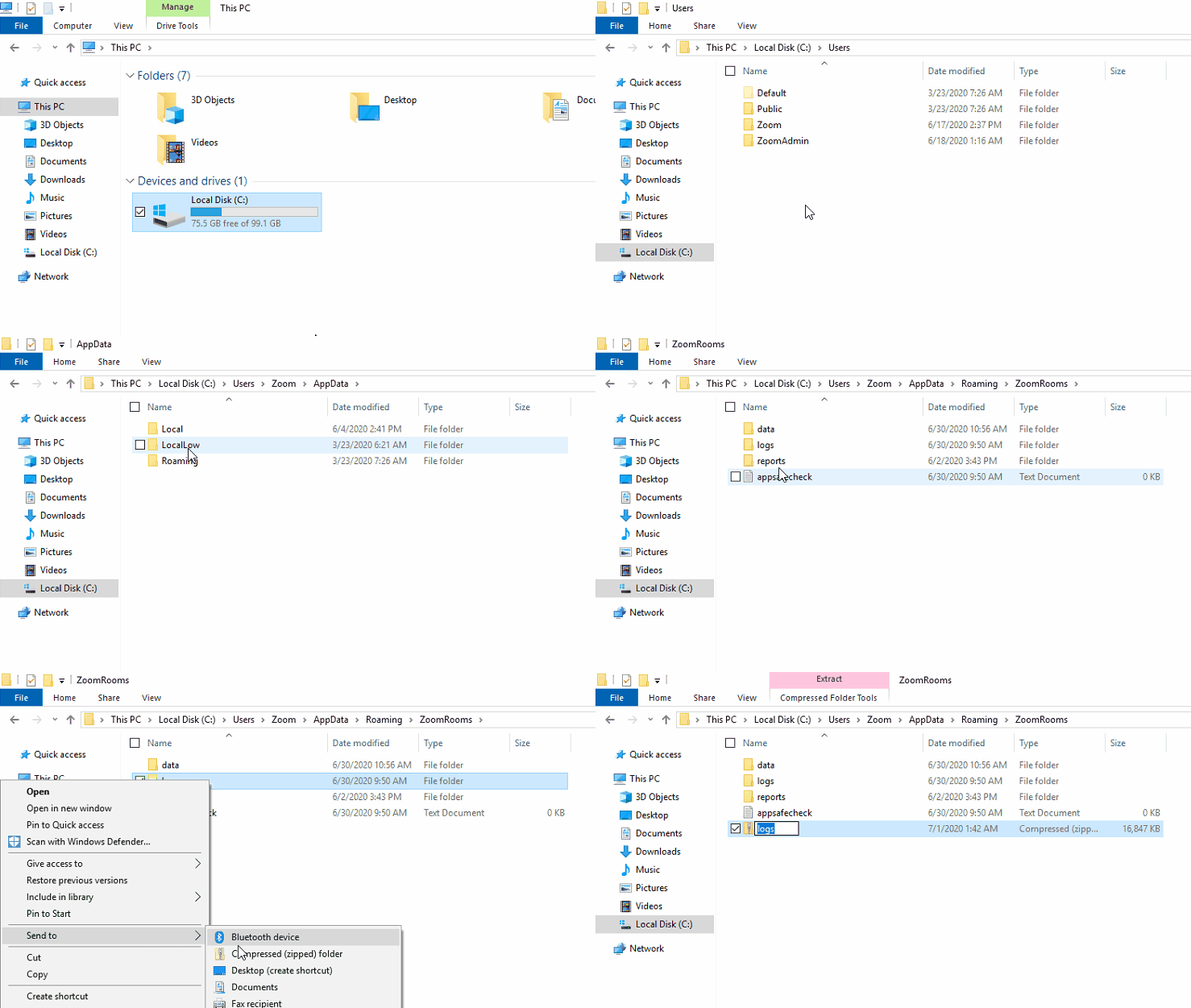
Zoom instructions: https://support.zoom.us/hc/en-us/articles/201512326-Troubleshooting-Log-for-PC
How do I get Windows Log?
- Click the Search bar → Enter “Event Viewer”
- Go to “Window Logs → click “Application”
- On the right → Click “Save All Events As…” to a new folder ( you can name it Windows log)
- Then, go to “System” under Window Logs → Click “Save All Events As…” to a new folder
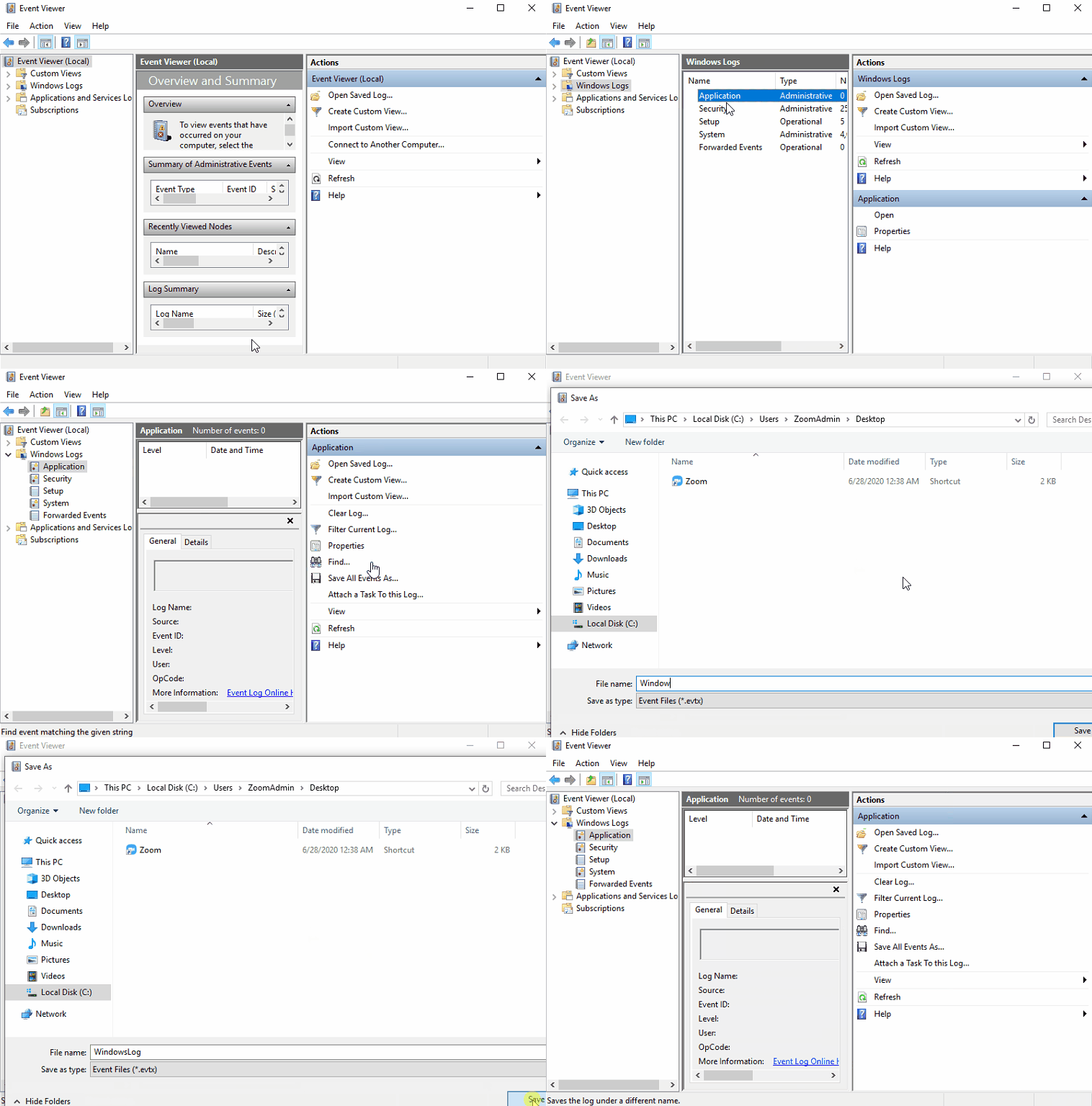
How do I find the Resource ID for the DTEN D7 device?
As part of the troubleshooting process for certain situations, DTEN Support will request the Resource ID to the DTEN D7 device. Please follow the following steps to find the Resources ID:
- Go to Zoom Web Portal (Zoom Rooms Management Portal)
- Click Zoom Rooms
- Click Rooms on the middle tab of the page
- Click the Room Name with the associated Device that has an issue
- Go to the URL on the top
- Copy and paste that URL to a notepad
Note:
The Resource ID - it has to be in this format:

If you have additional questions or need to contact DTEN Support, please refer to this DTEN Knowledge Base article for more details: HERE.
Was this article helpful?
That’s Great!
Thank you for your feedback
Sorry! We couldn't be helpful
Thank you for your feedback
Feedback sent
We appreciate your effort and will try to fix the article