
Overview
This article will show you how to enroll your existing DTEN devices to orbit:
Version Requirements
Orbit is only supported from the following firmware versions and above for each product type.
- D7 55 s1: 1.6.1
- D7 55 s2: 2.3.0
- D7 75: 2.3.0
- ON 55: 1.2.1
- DTEN ME:1.0.1
Notes: Please review the differences between D7 55 series 1 and series 2 in this FAQ.
If you need help to do the firmware upgrade, please refer to the following instructions:
Orbit Account Creation:
Create an Orbit account and generate a 6-digit code. If your IT administrator has created an orbit account, please skip this step.
If you haven’t created a corporate account, please follow the following steps:
- Go to orbit.dten.com
- Create a new account and then log in to the Orbit portal
- Go to “Device Management” > Click “Add devices” > Enter the number of devices that you plan to activate or deploy> click “Next”.
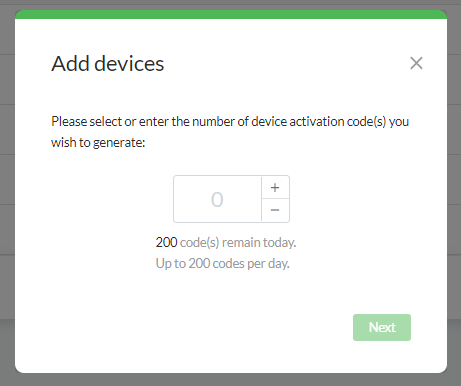
- You will see the codes in the pop-up window. We recommend sending it to yourself for record-keeping purposes.
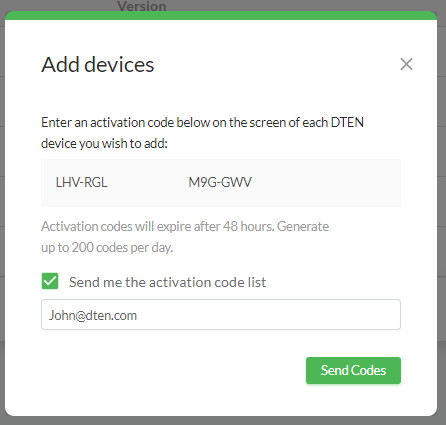
Note: For additional details, please refer to the video tutorial here.
NOTE: Once the device has been set up, the activation enrollment needs to be completed within 30 days to qualify for a 1-year limited warranty.
D7 55”, D7 75”, On 55”
- Press the menu button (second button from the bottom) to get to the menu dashboard
- Click “I have a code” at the bottom of the screen
-
Then, you should see the activation screen, as below:
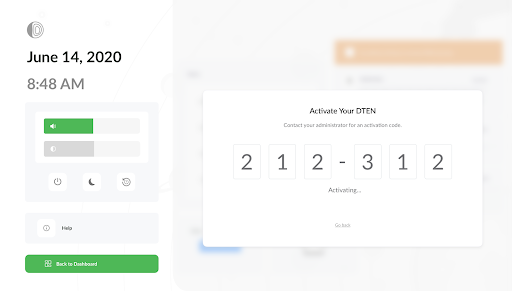
- Enter the 6 digits code generated by your IT administrator.
Note: You can enter the 4 digit code if you haven’t set up an Orbit account and wish to do so.
DTEN ME:
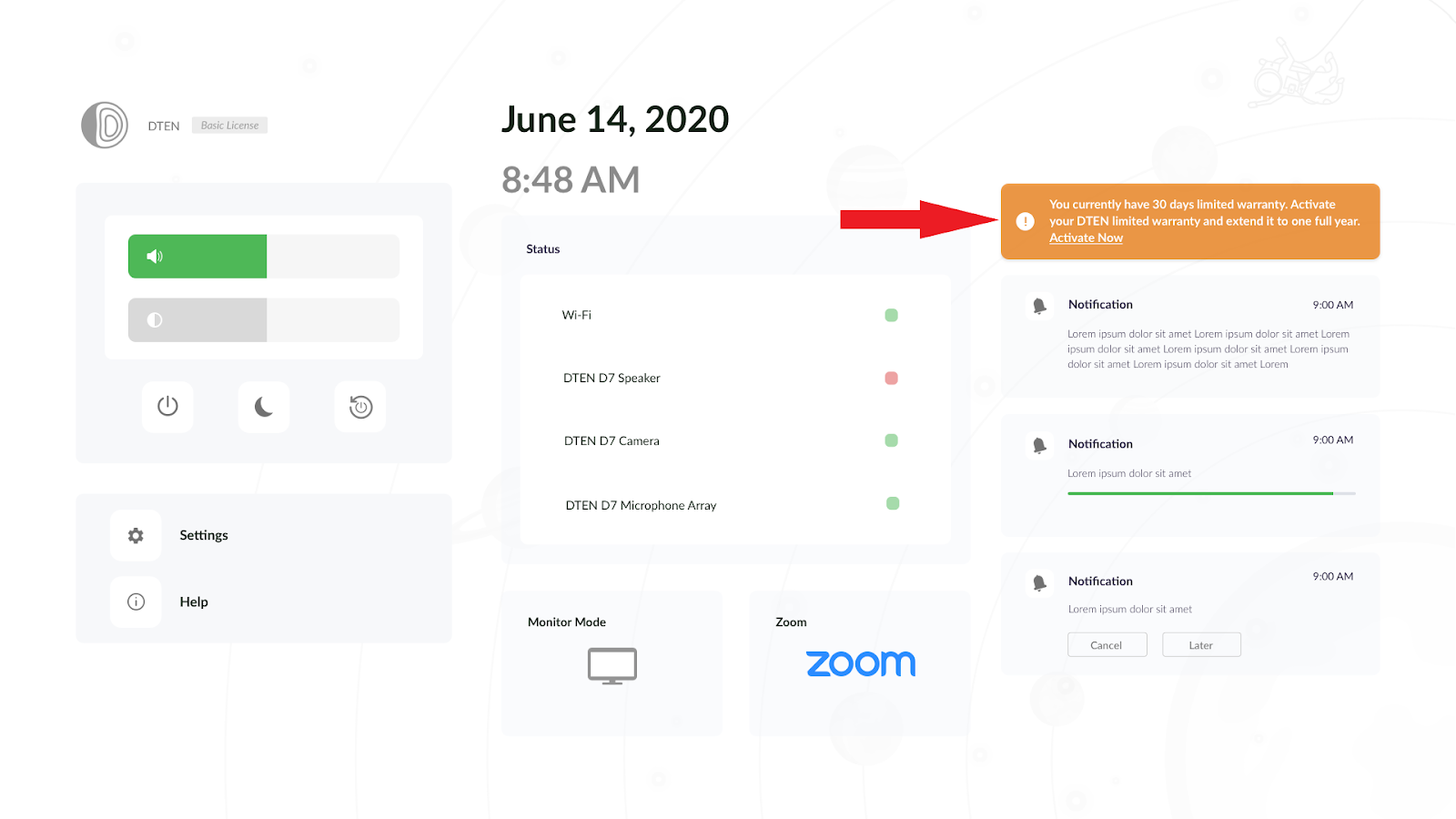
- Swipe to the dashboard. You will see an activation notification (in orange)
- Click on the notification in orange and then will prompt you to the activation screen refer
If you have additional questions or need to contact DTEN Support, please refer to this DTEN Knowledge Base article for more details: HERE.
Was this article helpful?
That’s Great!
Thank you for your feedback
Sorry! We couldn't be helpful
Thank you for your feedback
Feedback sent
We appreciate your effort and will try to fix the article