
- Download the Serial Port Debug Assistant
-
Connect the serial line (EG:9 PIN). For the first time use, you need to install the USB driver. Otherwise, Pin 2 is TXD; Pin 3 is RXD.
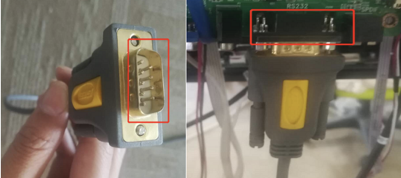
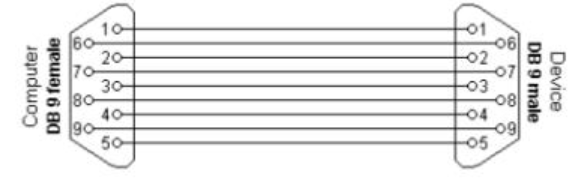
- Below are the Serial Port Configuration settings.
|
Setting name |
Value |
|
Baud Rate |
115200 |
|
Data Bits |
8 |
|
Stop Bits |
1 |
|
Check Bit |
None |
1. Next, go to the Device Manager, right-click to view the properties and view the Port Settings
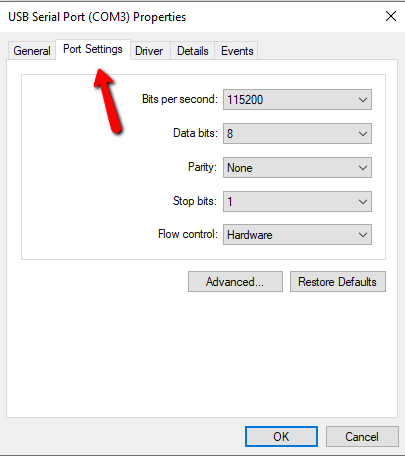
2. Enter the Serial Port Configuration settings (above) and click OK
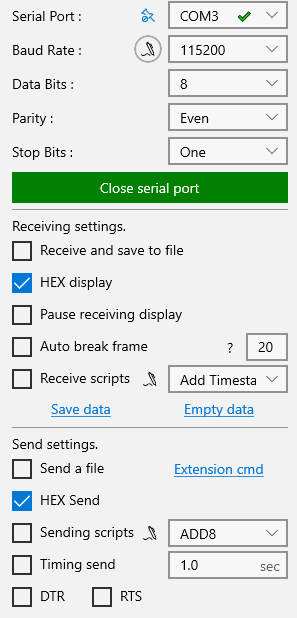
1. Open the Serial Port Debug Assistant, fill out the Serial Port, Baud Rate, Data Bits and Stop bits
2. Check HEX display under both, Receive settings and Send settings
3. Open the Serial port
4. Copy & Paste any of the codes from the table below into the empty field and click the “Send” button.
|
Discrete Codes (v1.3.4) |
|
|
Source Select PC (ZOOM) |
FE 60 00 24 00 AA |
|
Source Select VGA |
FE 60 00 21 00 AA |
|
Source Select HDMI 1 |
FE 60 00 23 00 AA |
|
Source Select HDMI 2 |
FE 60 00 43 00 AA |
|
Source Select DP |
FE 60 00 63 00 AA |
|
Volume Up |
99 01 17 01 E8 AA |
|
Volume Down |
99 01 18 01 E7 AA |
|
Audio Mute On |
99 01 02 01 FD AA |
|
Audio Mute Off |
99 01 02 01 FD AA |
|
Display On |
99 A2 01 01 27 AA AA AA |
|
Display Off |
99 01 05 01 FA AA |
If you have additional questions or need to contact DTEN Support, please refer to this DTEN Knowledge Base article for more details: HERE.
Was this article helpful?
That’s Great!
Thank you for your feedback
Sorry! We couldn't be helpful
Thank you for your feedback
Feedback sent
We appreciate your effort and will try to fix the article