

Overview
This document provides a detailed description of the following DTEN service:
- Customer’s ability to initiate DTEN Support Tickets for DTEN IT assistance
- Options for contacting the DTEN Support Team
Topics:
- Create a DTEN Support Ticket from Your Orbit Account
- Contact DTEN Support Team by Live Chat
Create a DTEN Support Ticket from Your Orbit Account
Prerequisites
- Customer has an active DTEN Orbit account
- Customer is the account owner or administrator of DTEN Orbit account
- Log into Orbit. If your window is not maximized, click on the Menu icon (upper right corner, Figure 1).
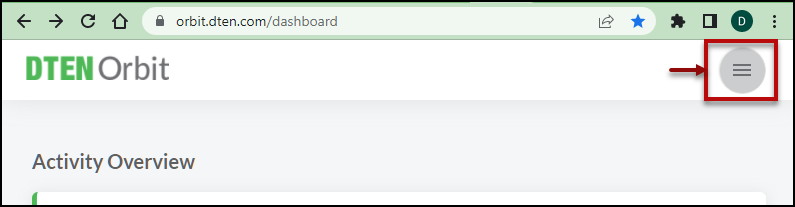
Figure 1. Menu icon
The Orbit navigation pane will appear (Figure 2).
-
Click the Support link (Figure 2).
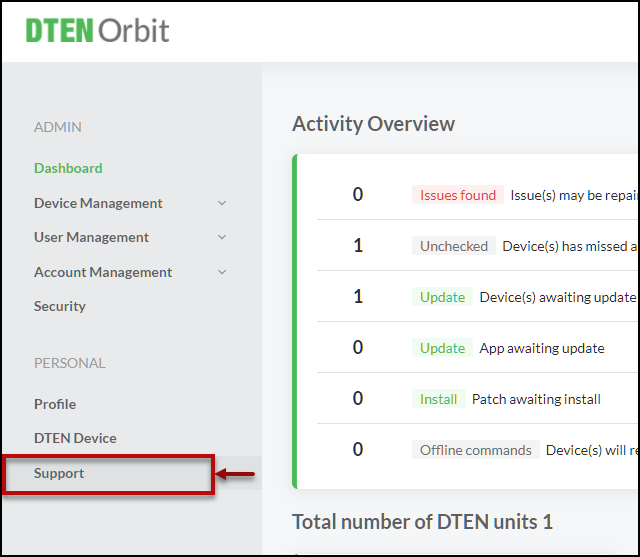
Figure 2. Orbit Support link
-
Click the Add Ticket button (Figure 3).
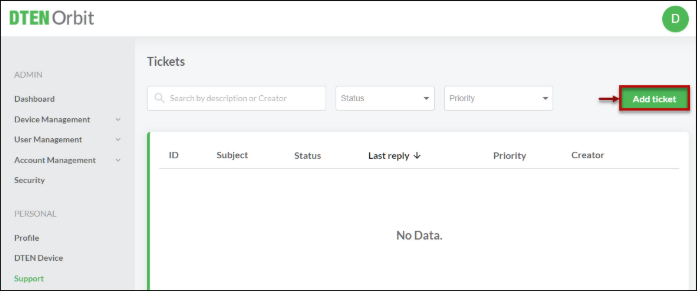
Figure 3. Add Ticket button
-
Complete the Add Ticket form (Figures 4 - 6).
a. Select the type of device from the product list (Figure 4-A).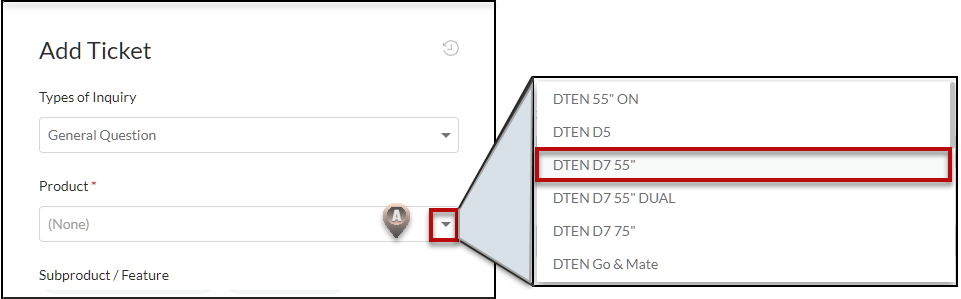
Figure 4. Select Device from Product list
b. Select a sub-product/feature that is relevant to the device problem (Figure 5-B).
c. Select the priority level (Figure 5-C).
d. Enter a subject (brief, one line description, Figure 5-D).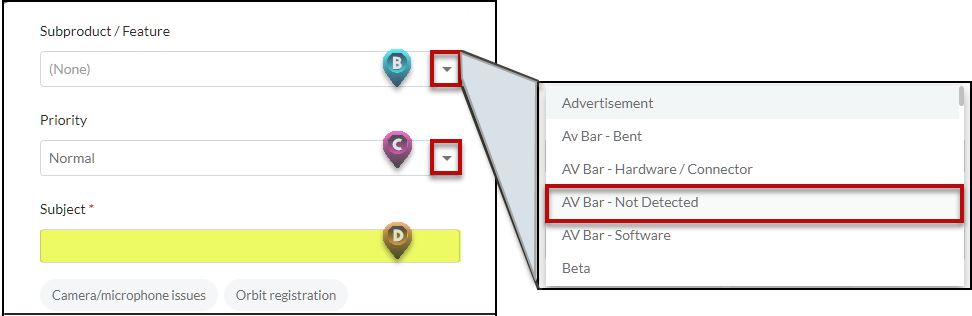
Figure 5. Select/Enter Feature, Priority, Subject
e. Enter a description with details about the problem (Figure 6-E).
f. Select the Device ID of the device that is having a problem (Figure 6-D).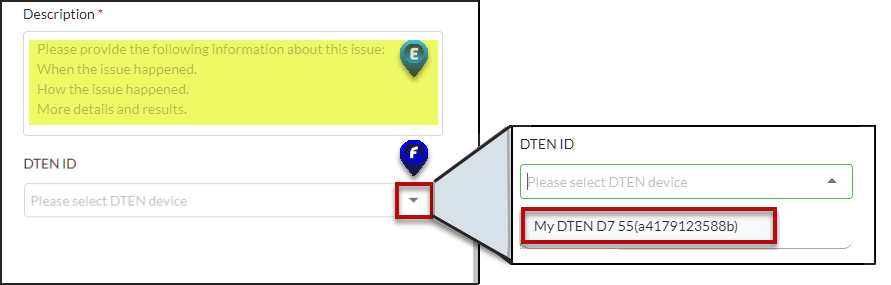
Figure 6. Select DTEN Device ID
Important: Once the Device ID number is selected, the Authorize checkbox will appear, along with date and time fields that will allow you to choose the date range and times that are best for DTEN support to schedule a session to assist you.
g. Click the Authorize checkbox (Figure 7-G).
Note: This provides authorization for remote assistance to be provided by a DTEN IT Technician if
needed. This service is called DTEN Orbit Mission Control. For more information, click HERE.
h. Click the Start date field, and choose a start date from the calendar that appears, then select a
desired Starttime in the right column (Figure 7-H).Next, click the End date field and choose an end date from the calendar that appears, then select
a desired End time (Figure 7-H).
Click the OK button in the calendar to confirm your selections (Figure 7-H, right).
Note: Time entered is based on a 24 hour clock, (e.g.) 6:00 pm = 18:00.i. Click the Add button to submit your ticket (Figure 7-I).
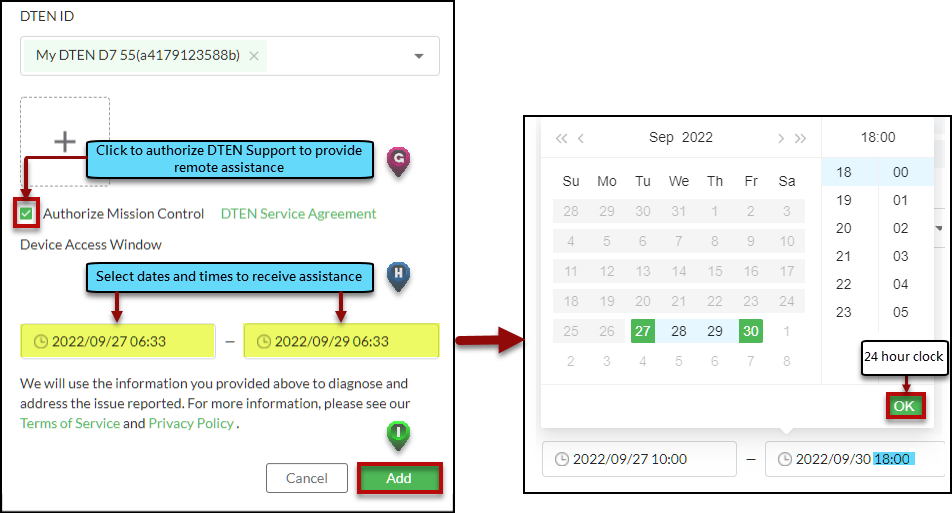
Figure 7. Authorize Checkbox, Start/End Dates and Add button
The newly created ticket will display in Orbit.
Alternatively, you can also navigate to your Device List in Orbit and click on the 3 dots (left margin after DTEN ID, Figure 7B ) and select Ticket from the pop-up menu to create a ticket.
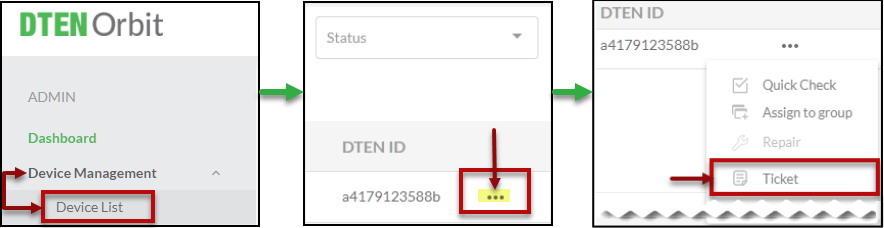
Figure 8. Device List, Menu ellipsis, and Ticket option
Contacting DTEN Support Team via Live Chat
The best way to contact DTEN Support are by the following methods:
- Live Chat
- To start a Live Chat session, please click on the chat icon in the lower right corner of any DTEN web page

If it is determined by the DTEN IT Support Team that remote access is needed to resolve your issue, you will receive an email requesting authorization to implement Mission Control.
If you have additional questions or need to contact DTEN Support, please refer to this DTEN Knowledge Base article for more details: HERE.
Was this article helpful?
That’s Great!
Thank you for your feedback
Sorry! We couldn't be helpful
Thank you for your feedback
Feedback sent
We appreciate your effort and will try to fix the article